Sign Up, Sign In & Two-Factor Authentication
Sign In
Step 1: Go to the Process Genie sign-in page and enter your credentials:
| Field | What to enter |
|---|---|
| The email you used to sign up | |
| Password | Your account password |
View: Sign In page
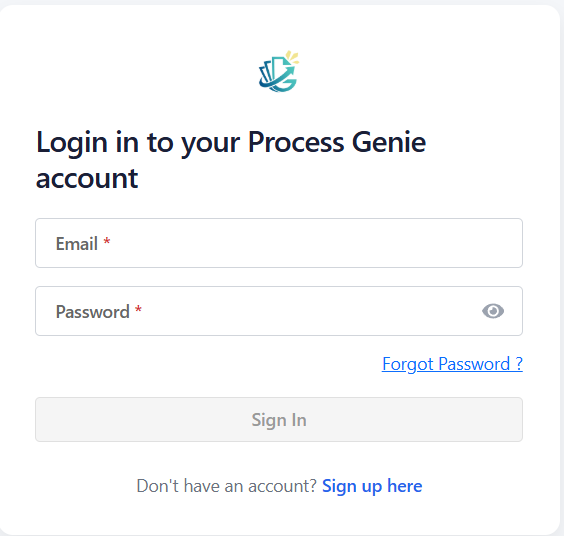
Step 2: Click "Sign In".
- If two-factor authentication (2FA) is enabled, you will be prompted for a verification code.
- If 2FA is not enabled, you will go directly to your dashboard.
Forgot your password?
Click "Forgot Password?" below the Sign In button, enter your email address, and follow the reset instructions sent to your inbox.
IAM User sign-in
If you were invited to join an organization as an IAM user:
- Click "IAM User" on the login page
- Enter your company domain (e.g.,
yourcompany.com) and click "Verify" - Enter your email and password, then click "Sign in"
Two-Factor Authentication (2FA)
Adds an extra layer of security. After entering your password, you confirm your identity with a second verification step before gaining access.
Verifying with 2FA at login
Step 1: After signing in, the 2FA screen appears showing which method is active (Authenticator App, SMS, or Email).
Step 2: Retrieve your verification code:
| Method | Where to find the code |
|---|---|
| Authenticator App | Open Google Authenticator, Authy, or your preferred app |
| SMS | Check your registered mobile number |
| Check your registered email inbox |
Step 3: Enter the code in the "Authentication code" field and click "Verify".
Note: The code expires after a short time. If it expires, click "RESEND OTP" to receive a new code.
Step 4: If you cannot access your usual method, click "USE A RECOVERY CODE" and enter one of your saved backup codes.
Enabling 2FA
Step 1: Click your profile icon in the top-right corner and select "My Settings".
Step 2: Go to the Two-Factor Authentication section and toggle "Enable two-factor authentication" ON.
Step 3: Choose your preferred method:
| Method | How it works |
|---|---|
| Authenticator App | Scan a QR code with Google Authenticator, Authy, or a similar app |
| SMS | Receive a one-time code via text message to your mobile number |
| Receive a one-time code to your registered email address |
Step 4: Follow the on-screen setup steps. Once configured, the method shows a green "Configured" badge.
Recovery Codes
After enabling 2FA, Process Genie generates recovery codes — single-use backup codes for when you lose access to your 2FA method.
⚠️ Important: Save your recovery codes immediately in a secure location. You cannot view them again after closing the setup dialog.
Disabling 2FA
Go to My Settings → Two-Factor Authentication and toggle it OFF. You will be asked to confirm with your current password.