Dashboard Overview
When you log in to Process Genie, you are taken directly to the Your Policies page. This is your main workspace for viewing and managing all compliance policies.
Left Sidebar
The left sidebar is always visible and contains:
ORGANIZATION
- Displays your current organization name and logo at the top
SERVICES
- Your Policies — View and manage all compliance policies
- Organization Management — Create and manage organizations
Settings — Access account and platform settings (bottom of sidebar)
Your Policies — Landing Page
After login, the Your Policies page opens automatically. It lists all compliance policies across your organization.
View: Your Policies page
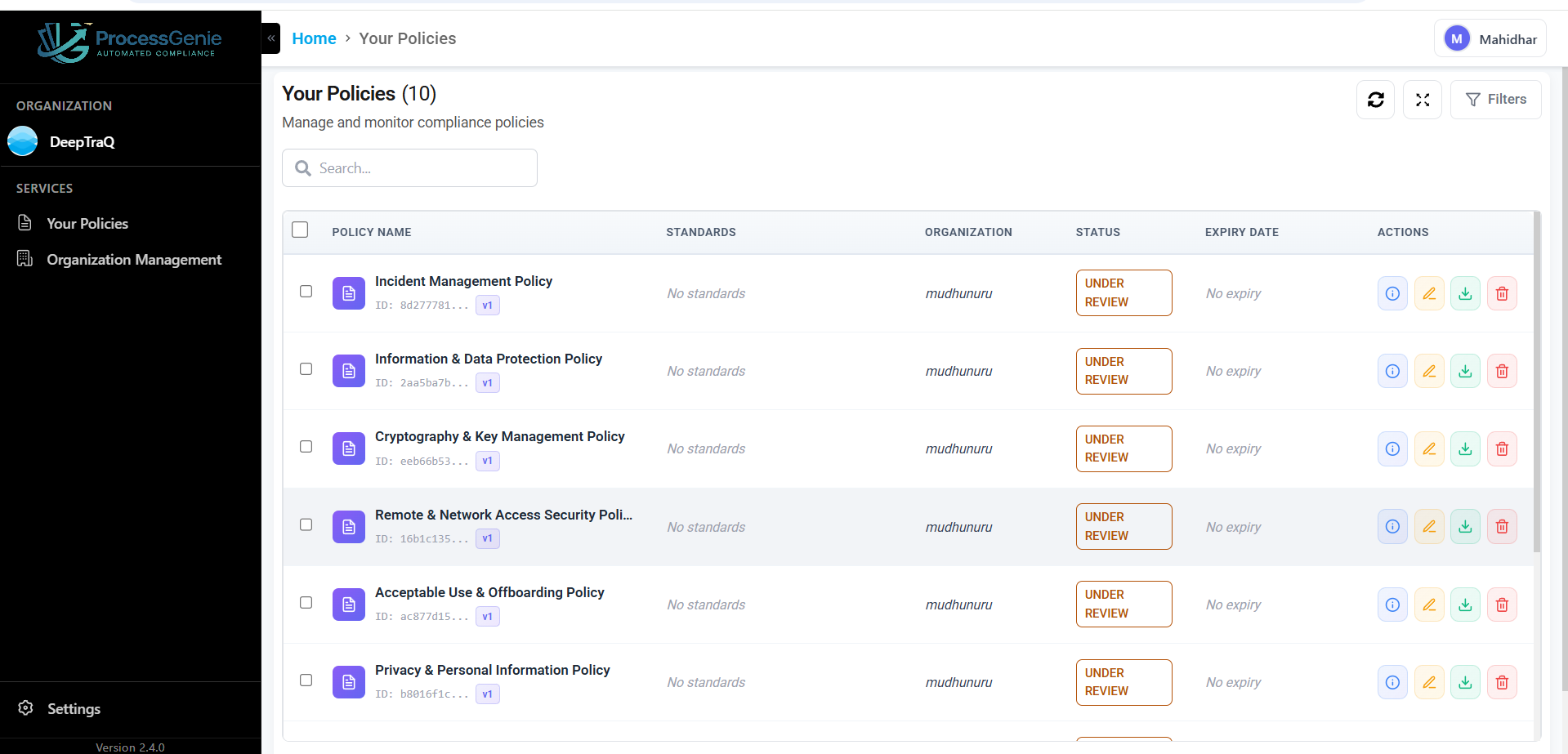
Page Elements
| Element | What it does |
|---|---|
| Your Policies (N) | Page title showing the total policy count |
| Search bar | Filter policies by name |
| Filters | Filter by standard, status, or expiry date |
| Refresh icon | Reload the policy list |
| Expand icon | Full-screen view of the table |
Policy Table Columns
| Column | What it shows |
|---|---|
| Policy Name | Policy title, ID, and version number |
| Standards | Compliance frameworks (e.g., SOC 2, NIST, ISO 27001) shown as colored tags |
| Organization | Which organization the policy belongs to |
| Status | Under Review, Approved, or Rejected |
| Expiry Date | Next review due date |
| Actions | View details, Edit, Download, Delete |
Organization Management Page
Click "Organization Management" in the sidebar to manage your organizations. The page shows the currently selected organization with its details and four tabs.
View: Organization Management page
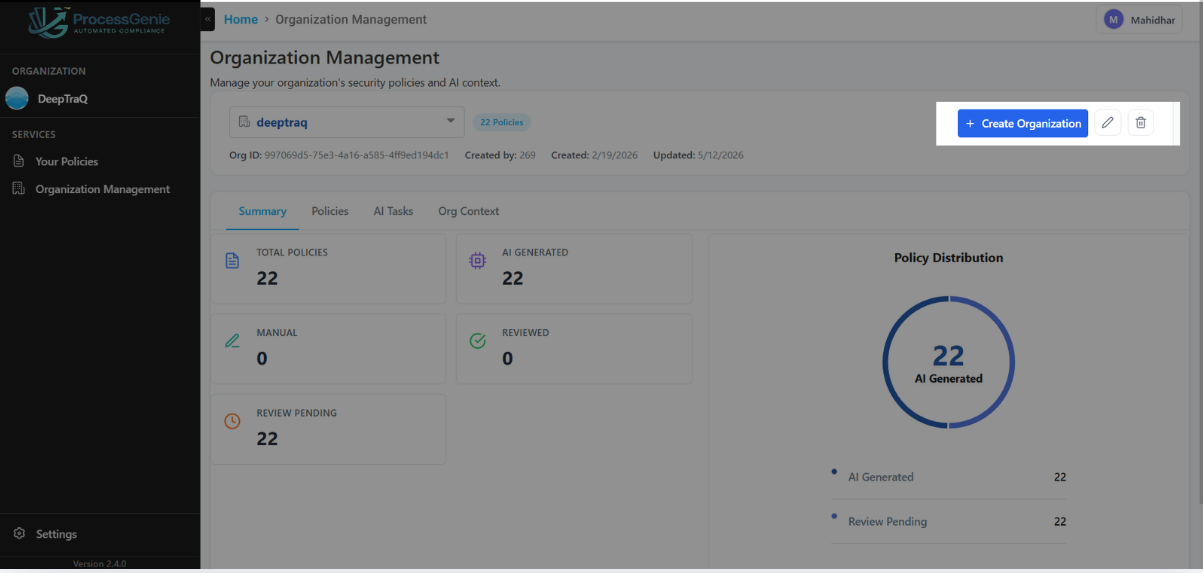
Page Elements
| Element | What it shows |
|---|---|
| Org selector (dropdown) | Name of the selected organization and policy count badge |
| Org ID | Unique identifier for the organization |
| Created by / Created / Updated | Audit metadata for the organization |
| + Create Organization | Button to add a new organization |
| Edit (pencil) icon | Edit the selected organization's details |
| Delete (trash) icon | Delete the selected organization |
The Four Tabs
| Tab | What it shows |
|---|---|
| Summary | Total policies, AI generated, manual, reviewed, review pending, and policy distribution chart |
| Policies | All policies linked to this organization |
| AI Tasks | Background AI jobs and their status |
| Org Context | AI-generated organization summary used for policy generation |
What to Do First
If you have just created your account:
- Go to Organization Management and click "+ Create Organization"
- Complete the 5-step wizard to set up your organization profile
- Wait for the AI to generate the Org Summary and User Review tasks
- Click Review on the User Review task to select which policies to generate
- Your generated policies will appear in Your Policies
See Create Organization for full step-by-step instructions.