Create Organization
Organizations are workspaces that group your compliance policies. You need at least one organization before you can generate policies. You can create multiple organizations for different business units or clients.
Opening the Wizard
Step 1: Click "Organization Management" in the left sidebar.
Step 2: Click "+ Create Organization" in the top-right corner.
View: Organization Management page — Create Organization button
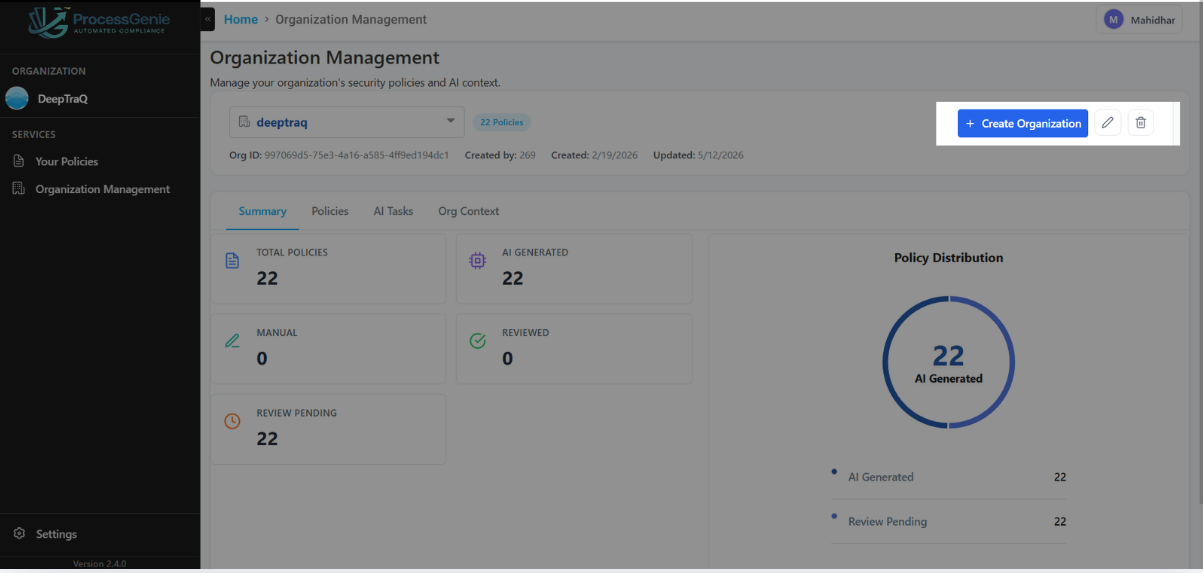
A 5-step wizard dialog opens. Progress is shown at the top. You can go "Back" at any step.
| Step | Name | What you fill in |
|---|---|---|
| 1 | Organization Identity | Company name, logo, location, industry |
| 2 | Policy & Compliance | Compliance frameworks and policy defaults |
| 3 | Contact Person | Primary contact details |
| 4 | Tech & Digital Presence | Technology stack, websites, social links |
| 5 | Supporting Documents | Company documents and presentations |
Step 1 of 5 — Organization Identity
Enter your company's core identity details. The legal name and logo are required — everything else is optional but helps the AI generate better policies.
View: Step 1 — Organization Identity
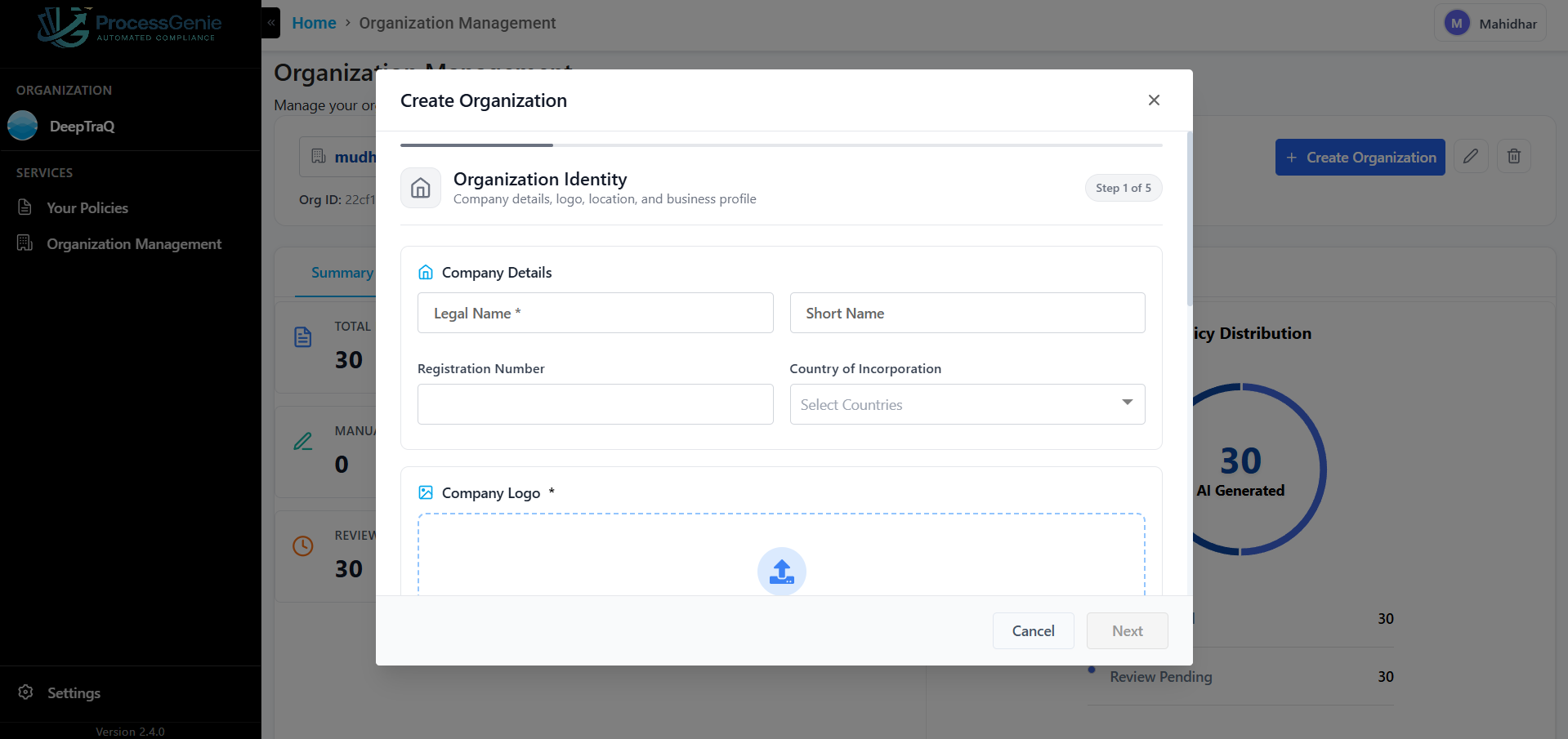
Company Details:
| Field | Required | Selection Type | What to enter |
|---|---|---|---|
| Legal Name | ✅ Yes | Text Input | Full legal name (e.g., "Acme Technologies Ltd.") |
| Short Name | No | Text Input | Abbreviated or trading name |
| Registration Number | No | Text Input | Company registration or incorporation number |
| Country of Incorporation | No | Multi Select | Select from the dropdown |
Company Logo:
Upload your logo — it appears on all generated PDF reports.
- Accepted formats:
.png,.jpg,.jpeg - Drag and drop into the upload area, or click to browse
Location & Operations:
| Field | Selection Type | What to enter |
|---|---|---|
| Primary Business Address | Multi-value Input | Type your address and press Enter. You can add multiple addresses. |
| Operating Regions | Multi Select | Select all regions where your company operates |
| Subsidiaries | Text Input | Enter subsidiary names separated by commas |
Industry & Business:
| Field | Selection Type | Options |
|---|---|---|
| Industry | Single Select | Technology, Finance & Banking, Healthcare, Retail & E-commerce, Manufacturing, Education, Government, Other |
| Business Model | Multi Select | B2B, B2C, B2B2C, SaaS, Marketplace, Other |
| Employees Range | Single Select | 1–50, 51–200, 201–500, 501–1000, 1001–5000, 5000+ |
| Organization Description | Text Input | A brief description of what your organization does |
Click "Next" to continue.
Step 2 of 5 — Policy & Compliance
Configure how the AI writes policies and which compliance standards apply to this organization.
View: Step 2 — Policy & Compliance
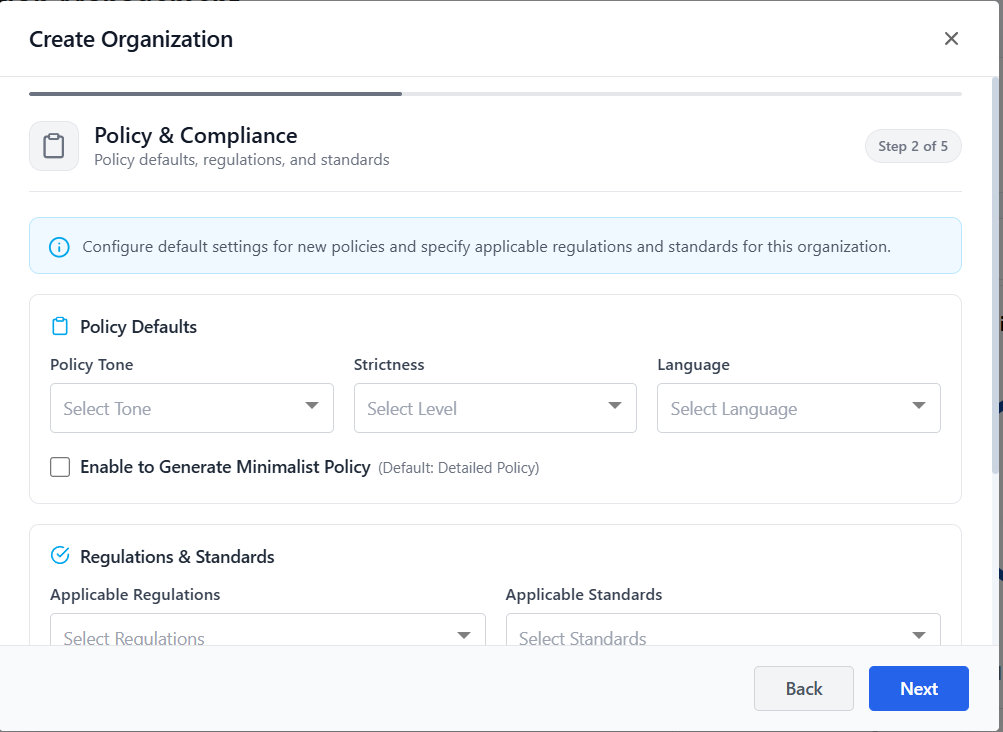
Policy Defaults:
| Setting | Selection Type | Options | What it means |
|---|---|---|---|
| Policy Tone | Single Select | Formal, Practical | Formal = corporate language; Practical = plain, action-oriented |
| Strictness | Single Select | Conservative, Balanced, Permissive | How strict the policy requirements should be |
| Language | Single Select | English | Language for generated policies |
| Minimalist Policy | Checkbox | Enable / Disable | Enable for concise policies; leave unchecked for detailed policies |
Applicable Regulations — Selection Type: Multi Select — select all that apply:
| Regulation | Who needs it |
|---|---|
| GDPR | Organizations serving EU customers |
| DPDP | Organizations operating in India |
| CCPA | Organizations serving California residents |
| HIPAA | Organizations handling US healthcare data |
Applicable Standards — Selection Type: Multi Select — select all compliance frameworks you are targeting:
| Standard | Description |
|---|---|
| ISO 27001 | International information security management |
| SOC 2 | Trust service criteria for service organizations |
| HIPAA | US healthcare data security and privacy |
| GDPR | EU data protection regulation |
| CMMC 2.0 | US DoD cybersecurity maturity model |
| NIST 800-53 | US federal security and privacy controls |
Tip: Select multiple standards. The AI generates policies that satisfy all selected standards simultaneously.
Click "Next" to continue.
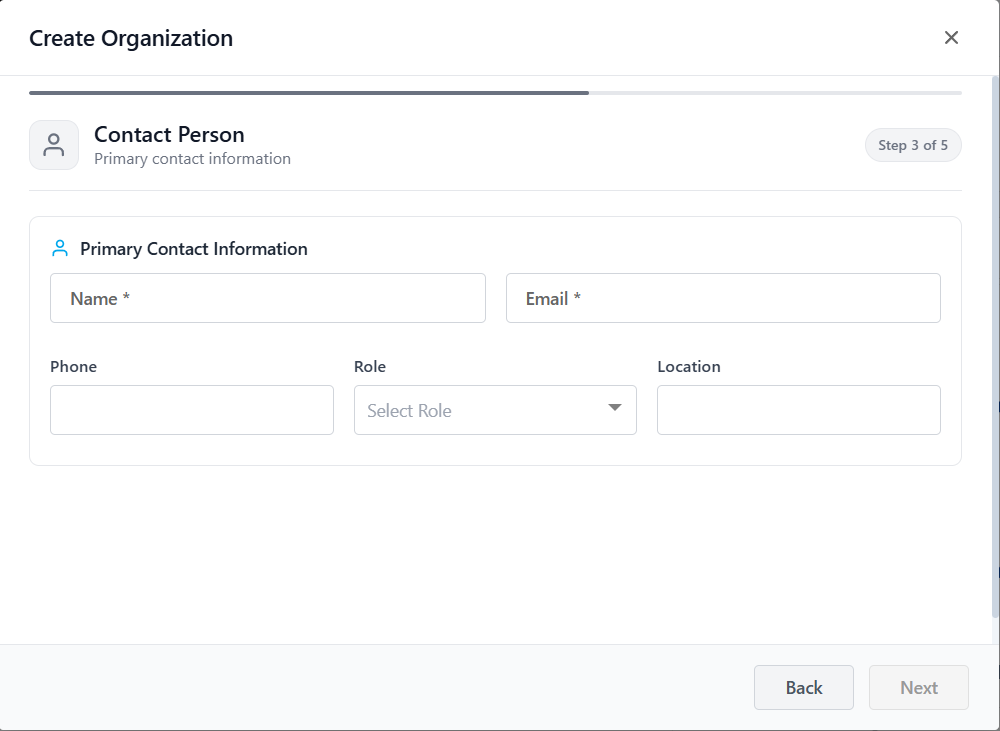
Step 3 of 5 — Contact Person
Add the primary contact for this organization.
View: Step 3 — Contact Person
| Field | Required | Selection Type | What to enter |
|---|---|---|---|
| Name | ✅ Yes | Text Input | Full name of the primary contact |
| ✅ Yes | Text Input | Contact person's email address | |
| Phone | No | Text Input | Contact phone number |
| Role | No | Single Select | CISO, CTO, IT Manager, Security Analyst, Compliance Officer, Other |
| Location | No | Text Input | City or country of the contact person |
Click "Next" to continue.
Step 4 of 5 — Tech & Digital Presence
Upload your technology stack so Process Genie can generate policies that reference your actual tools and infrastructure.
View: Step 4 — Tech & Digital Presence
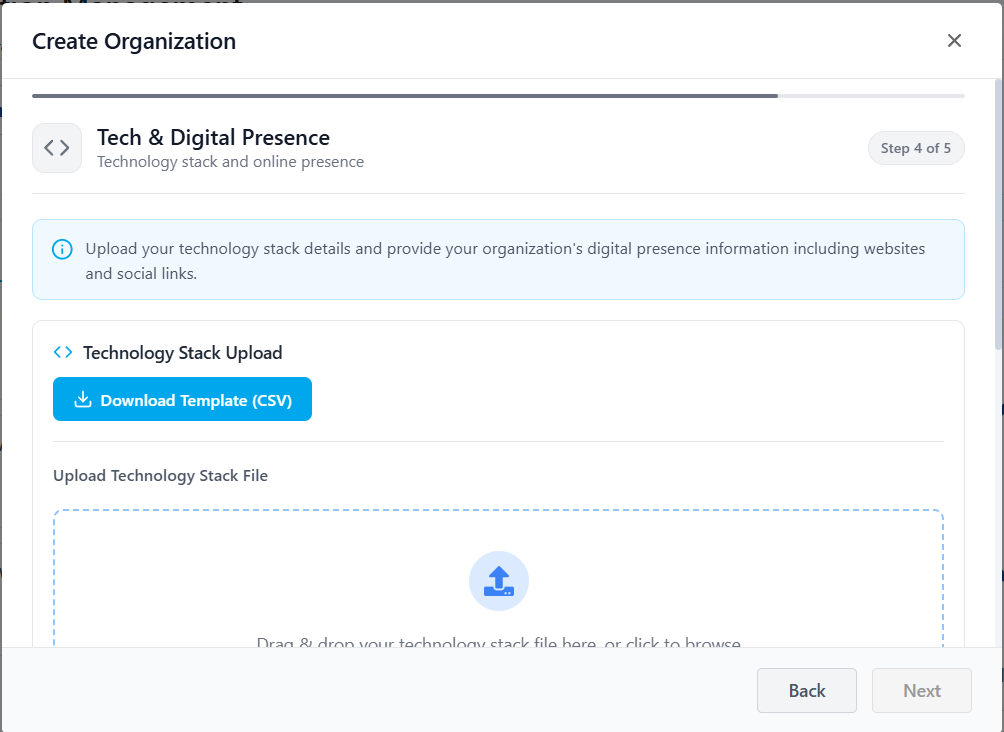
Technology Stack Upload
Step 1: Click "Download Template (CSV)" to download the pre-formatted spreadsheet.
The template has 3 columns:
View: CSV template structure
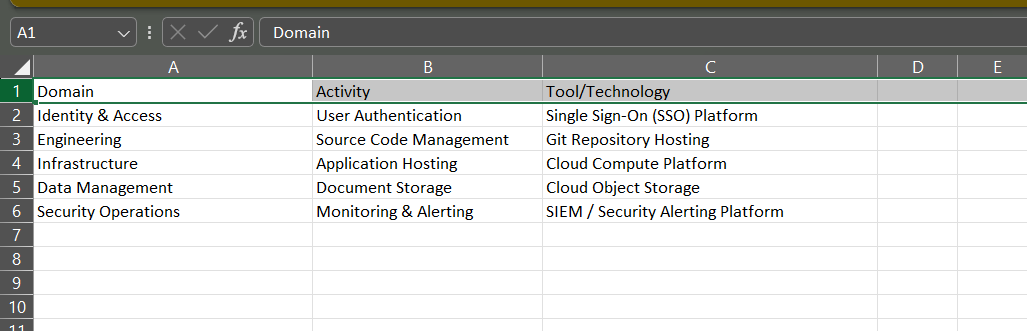
| Column | Name | Selection Type | What to fill in |
|---|---|---|---|
| A | Domain | Text Input | The functional area or department (e.g., Developer / Engineering, DevOps / SRE, HR / Human Resources) |
| B | Activity | Text Input | The specific function or task performed within that domain (e.g., Code development IDEs, CI/CD, Payroll) |
| C | Tool / Technology | Text Input | The actual tool or platform used for that activity (e.g., VS Code, Jenkins, Docker, Keka) |
Each row represents one tool. If a domain uses multiple tools for different activities, add a separate row for each.
Step 2: Fill in the template with your organization's complete technology stack. Refer to the example below to see how a completed template looks across all departments.
View: Example — fully filled technology stack template
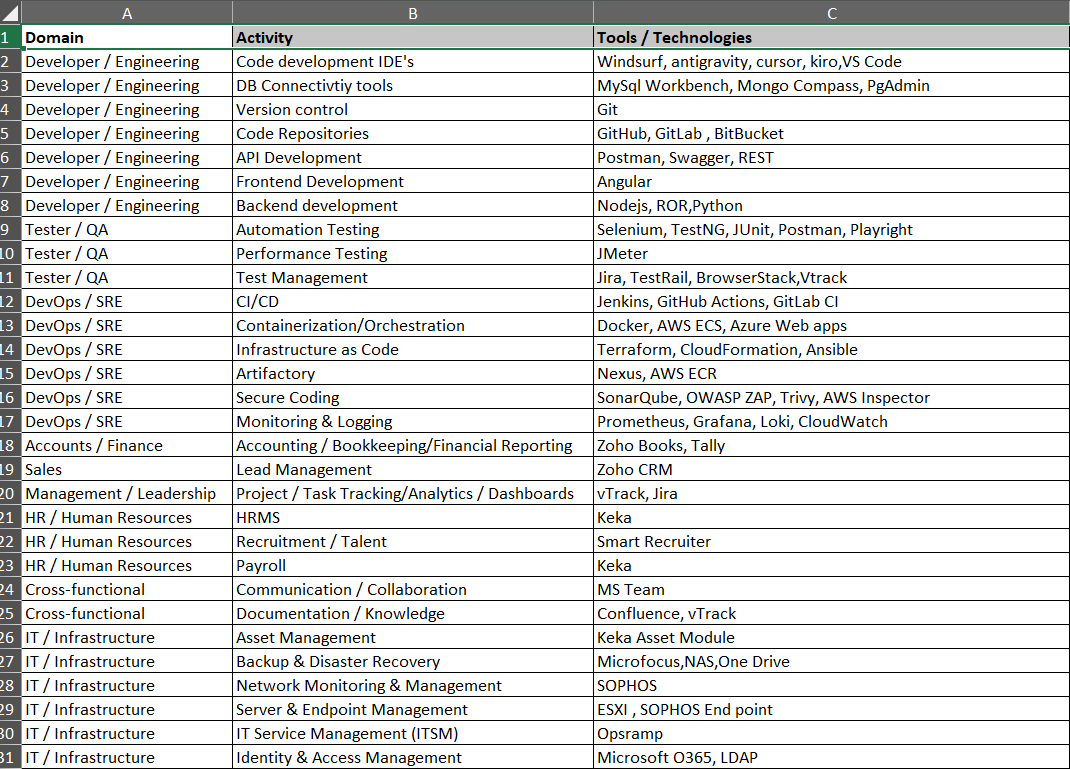
The example above shows typical entries across departments:
| Domain | Example Activities | Example Tools |
|---|---|---|
| Developer / Engineering | Code development IDEs, DB Connectivity, Version control, API Development | VS Code, MySQL Workbench, Git, Postman |
| Tester / QA | Automation Testing, Performance Testing, Test Management | Selenium, JMeter, Jira |
| DevOps / SRE | CI/CD, Containerization, Infrastructure as Code, Monitoring | Jenkins, Docker, Terraform, Grafana |
| Accounts / Finance | Accounting, Financial Reporting | Zoho Books, Tally |
| HR / Human Resources | HRMS, Recruitment, Payroll | Keka, Smart Recruiter |
| IT / Infrastructure | Network Monitoring, Server Management, Identity & Access | SOPHOS, Microsoft O365, LDAP |
| Cross-functional | Communication, Documentation | MS Teams, Confluence |
Step 3: Save the file and drag and drop it into the upload area, or click to browse and select it.
Website & Legal Pages:
| Field | Required | Selection Type | What to enter |
|---|---|---|---|
| Website URLs | ✅ Yes | Single-value Input | Your organization's website(s), comma-separated |
| Security Page URL | No | Text Input | Link to your public security page |
| Privacy Policy URL | No | Text Input | Link to your privacy policy |
| Terms URL | No | Text Input | Link to your terms of service |
Social & Developer Presence:
| Field | Selection Type | What to enter |
|---|---|---|
| LinkedIn Page | Text Input | Company LinkedIn URL |
| Twitter Handle | Text Input | Twitter/X handle |
| GitHub Org | Text Input | GitHub organization name |
Click "Next" to continue.
Step 5 of 5 — Supporting Documents
Upload company documents that give the AI additional context — presentations, company overviews, or existing security documentation.
View: Step 5 — Supporting Documents
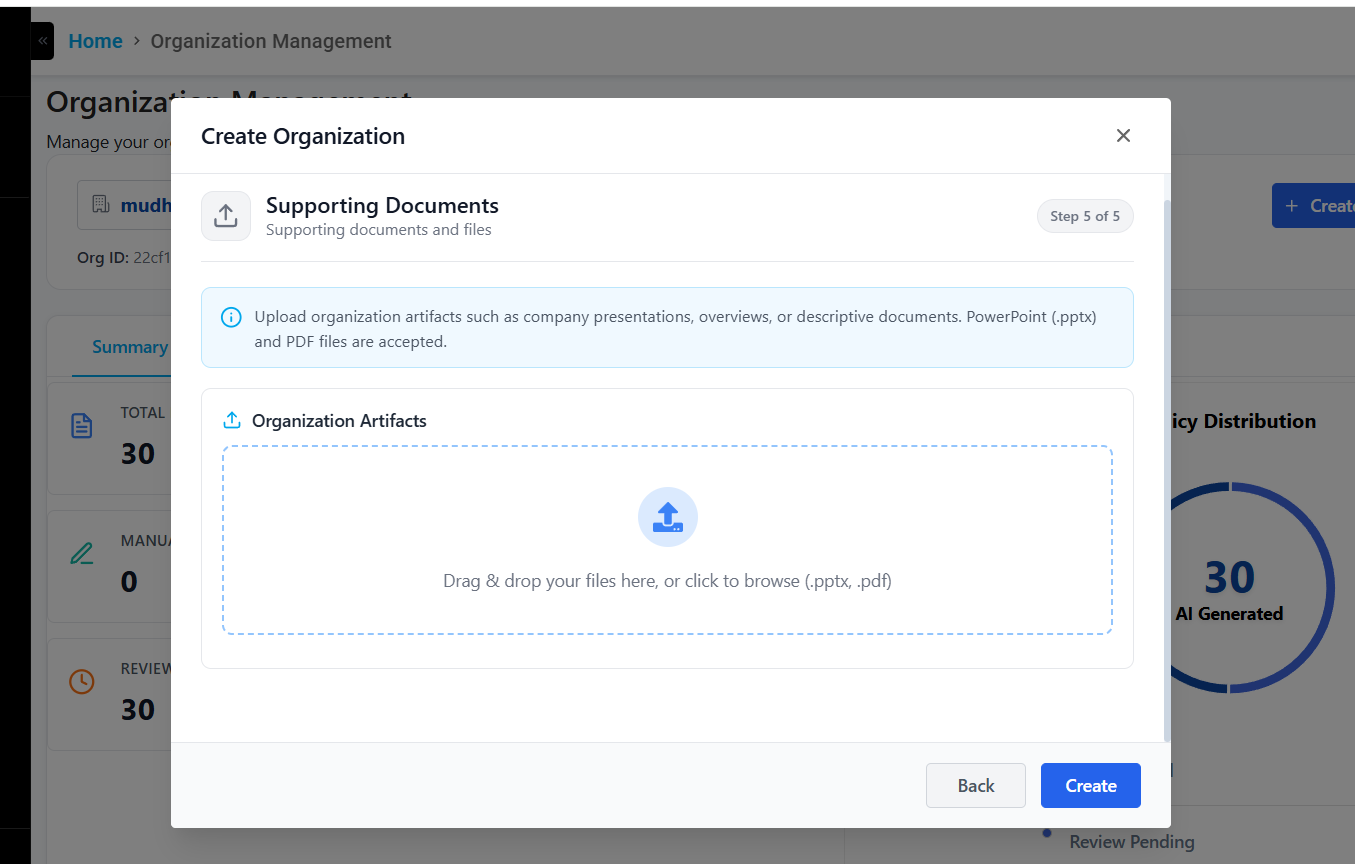
- Accepted formats:
.pptx,.ppt,.pdf - Drag and drop files into the upload area, or click to browse
- You can upload multiple files
Click "Create" to finalize and create the organization.
What Happens After Creation
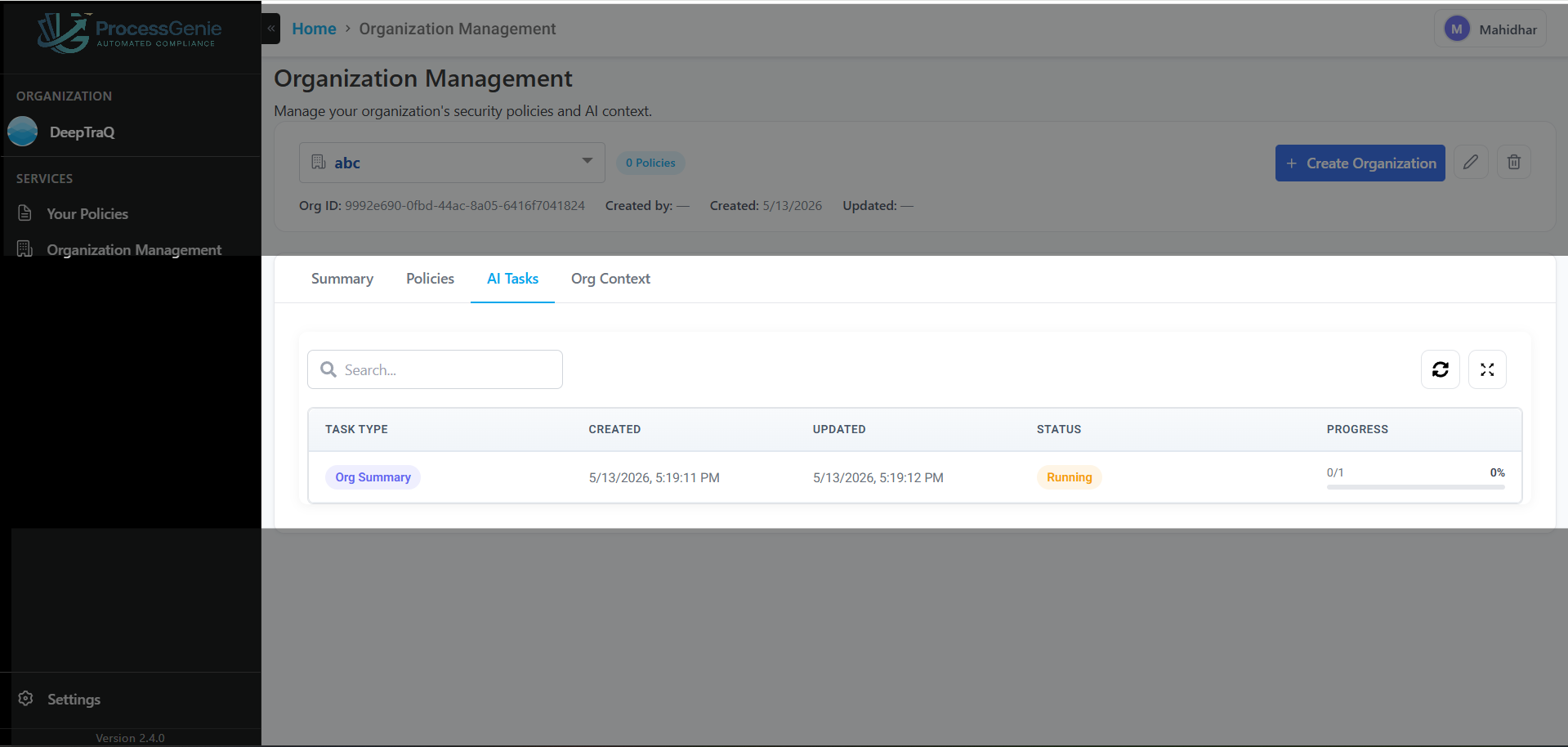
After the organization is created, you are taken to the Organization Management page. Process Genie automatically starts two background AI tasks in the AI Tasks tab:
- Org Summary — generates the Org Context summary from your organization's profile
- User Review — analyzes your compliance requirements and suggests which policies to generate
First, the Org Summary task starts immediately with status Running:
View: AI Tasks — Org Summary running after organization creation
Then, once Org Summary completes, the User Review task appears with status Review Pending. Click "Review" to select which policies to generate:
View: AI Tasks — Org Summary completed, User Review pending
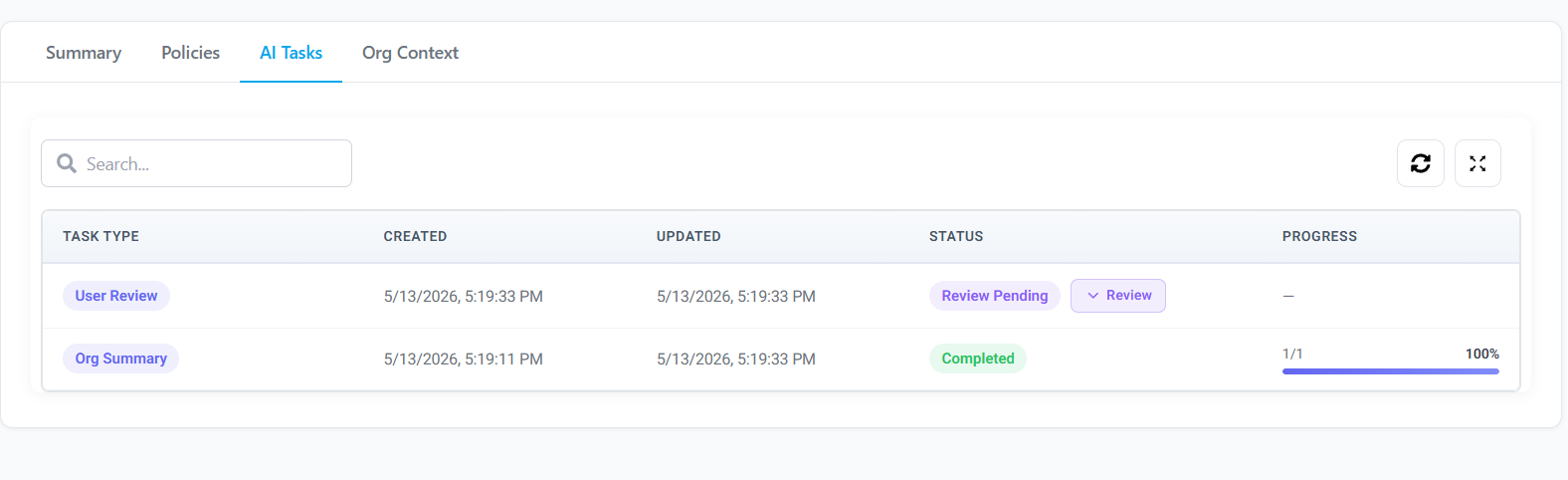
See Organization Management for full details on reviewing and generating policies.