AI Review
What this does
Process Genie uses AI to analyze your organization profile and suggest which policies should be generated. All AI jobs run asynchronously (in the background) so you can continue working while the AI processes your data.
Viewing AI Tasks
Step 1: Go to Organization Management in the left sidebar.
Step 2: Select your organization from the dropdown.
Step 3: Click the "AI Tasks" tab.
View: AI Tasks tab — policy generation in progress
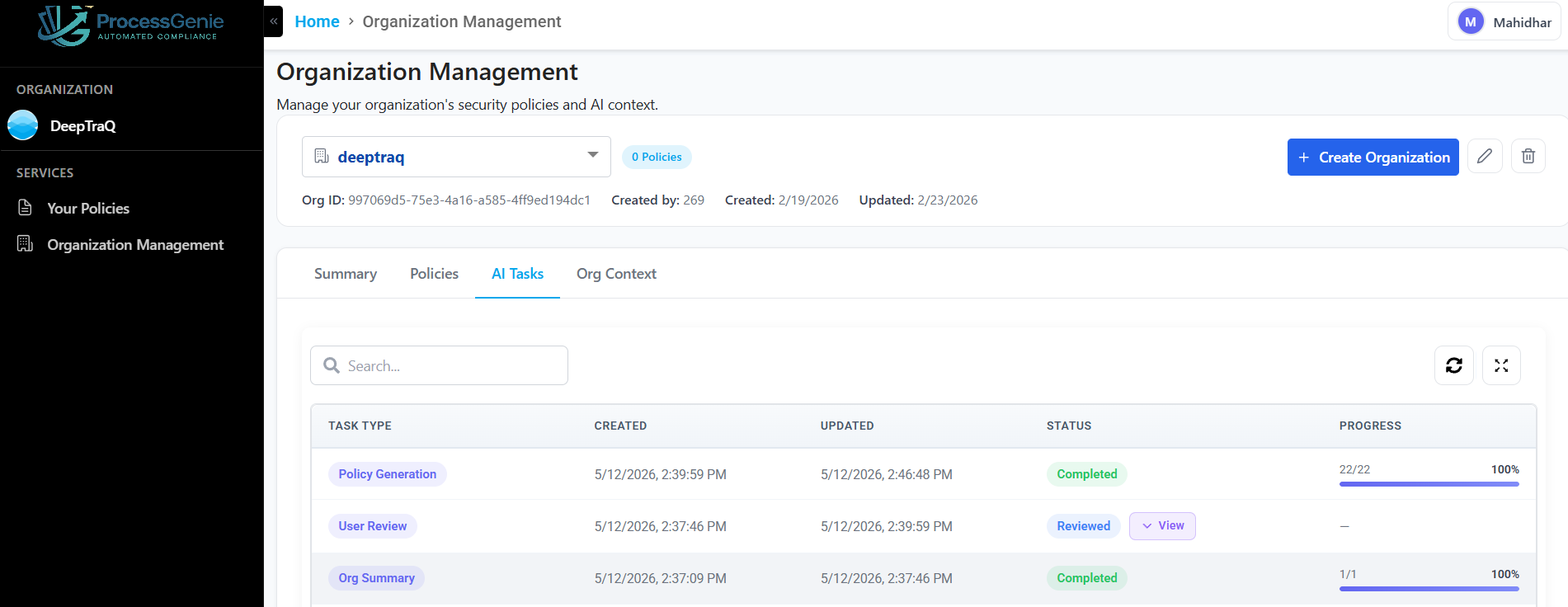
The AI Tasks Table
| Column | What it shows |
|---|---|
| Task Type | Org Summary, User Review, Policy Generation, Policy Regeneration |
| Created | When the task was started |
| Updated | Time of the last status update |
| Status | Current state of the task |
| Progress | Completion percentage (0–100%) |
| Actions | Buttons to Review, View, Retry, or Cancel |
Task Statuses
| Status | What it means |
|---|---|
| 🟡 Queued | Task is waiting to start |
| 🟠 Running | AI is actively processing |
| 🟣 Review Pending | AI has finished and is waiting for your input |
| 🔵 Reviewed | You have submitted a review |
| 🟢 Completed | Task finished successfully |
| 🔴 Failed | Task encountered an error — click "Retry" |
| ⚫ Cancelled | Task was cancelled |
View: AI Tasks tab — User Review task with Review Pending status
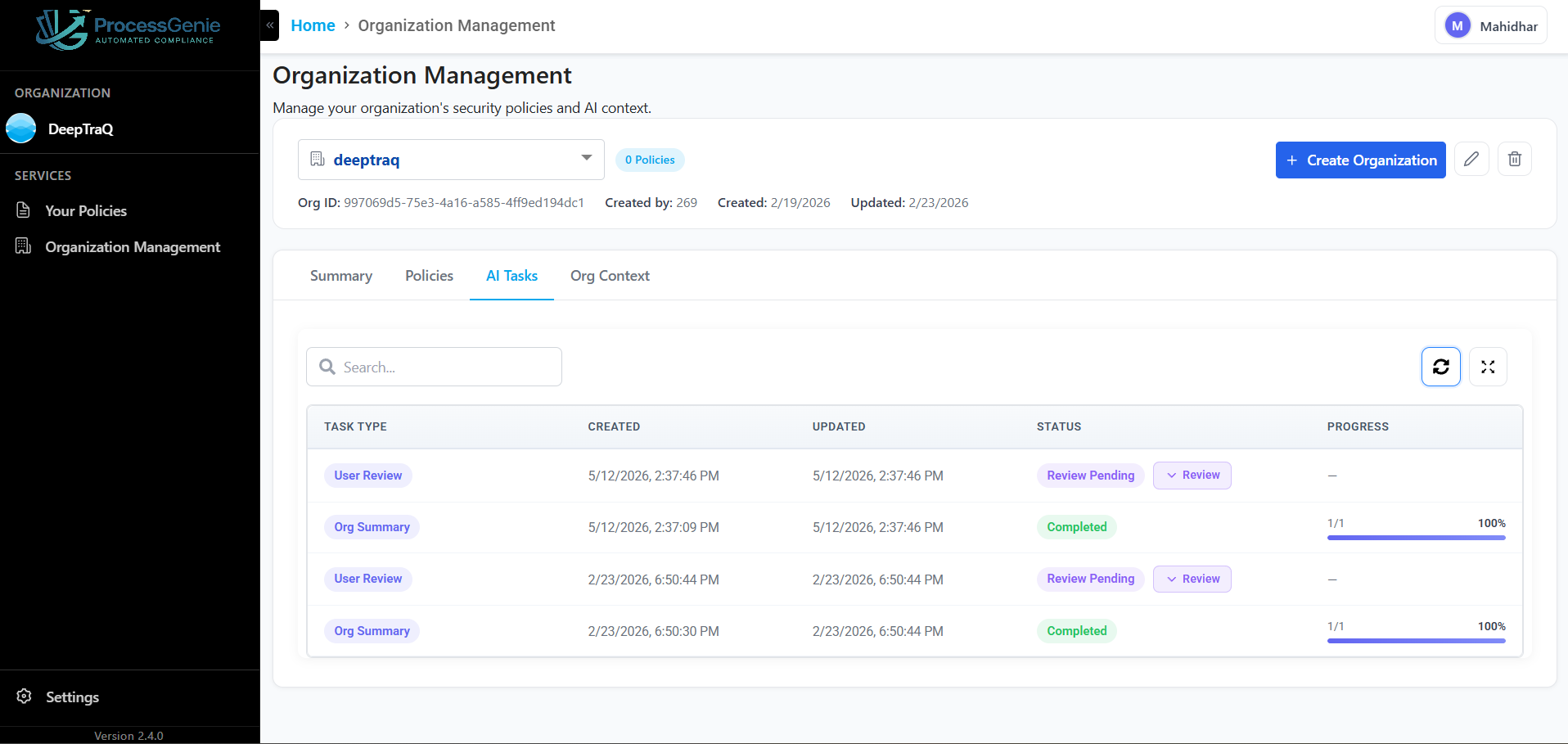
Reviewing AI-Suggested Policies (User Review Task)
When a task shows "Review Pending" with type "User Review", the AI has analyzed your organization and is suggesting which policies to generate.
Step 1: Find the User Review task with "Review Pending" status. Click "Review".
View: Required Policies and Recommended Policies panel
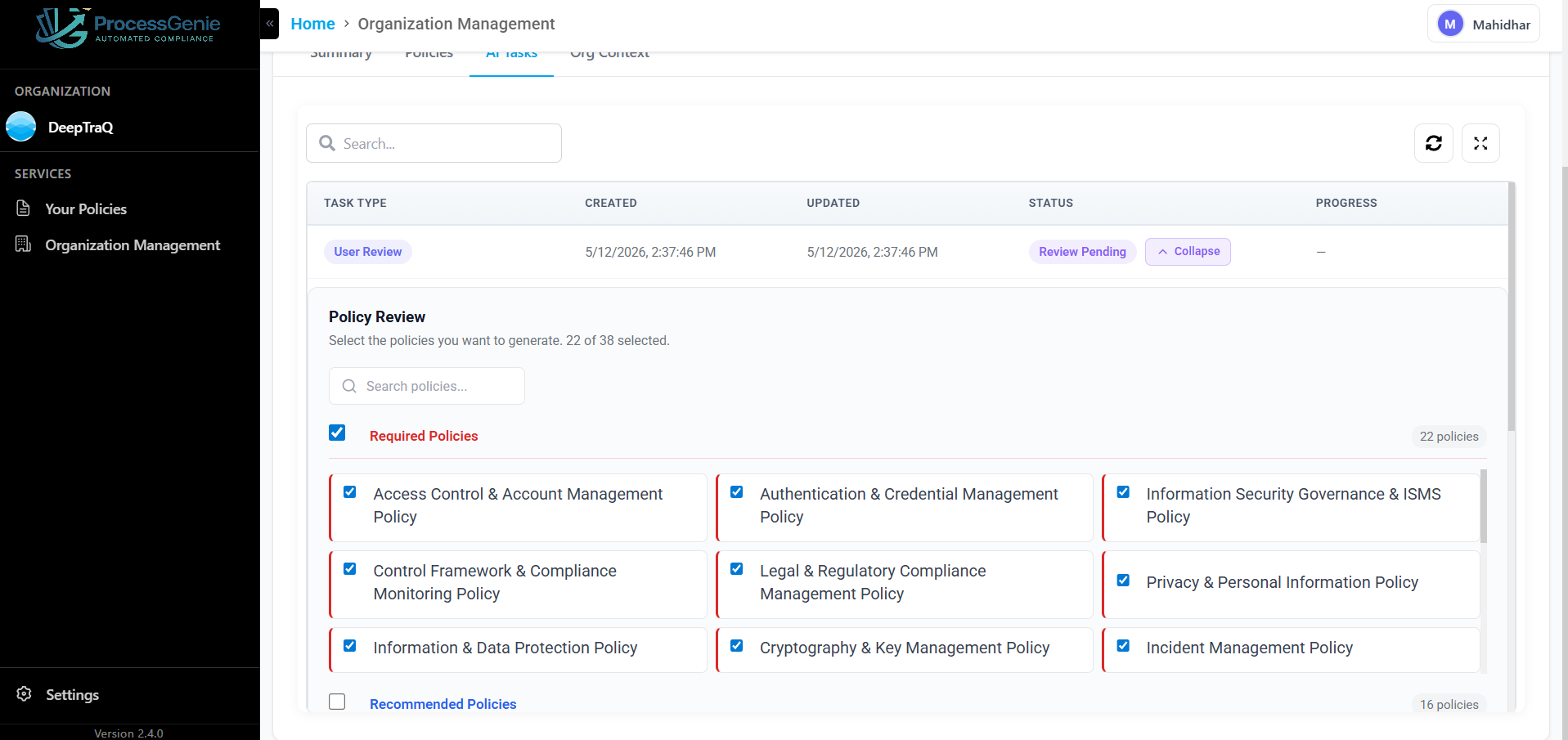
Step 2: A panel expands below the row showing:
| Section | What it contains |
|---|---|
| Required Policies | Policies the AI determined are necessary for your compliance requirements |
| Recommended Policies | Additional policies that would strengthen your compliance posture |
Each policy has a checkbox. Required policies are selected by default.
View: Selecting policies from the review panel
Step 3: Review and customize the selection:
| Action | How |
|---|---|
| Select/deselect a policy | Click its checkbox |
| Select all in a section | Click "Select All" |
| Find a specific policy | Use the search bar within the panel |
| See your selection count | The counter shows e.g., "12 of 20 selected" |
Step 4 (optional): Add a note in the "Review Comment" field to document why you made certain choices.
Step 5: Click "Submit" (the button shows the number of selected policies) to confirm. The AI generates all selected policies in the background.
Regenerating Policies
To update a previously submitted review or regenerate policies:
Step 1: Find a completed User Review task. Click "View" to expand it.
Step 2: Click "Regenerate Policies" to enter edit mode.
Step 3: Update your selection and click "Regenerate" (the button shows the count of selected policies).
Retrying Failed Tasks
If a task shows Failed status, click "Retry" on that row to attempt the task again. If it continues to fail, contact support.
Org Context — Reviewing the AI-Generated Summary
After an organization is created, the AI generates a summary of your organization profile. This context is used when generating all policies.
Step 1: On the Organization Management page, click the "Org Context" tab.
View: Org Context tab — AI-generated organization summary
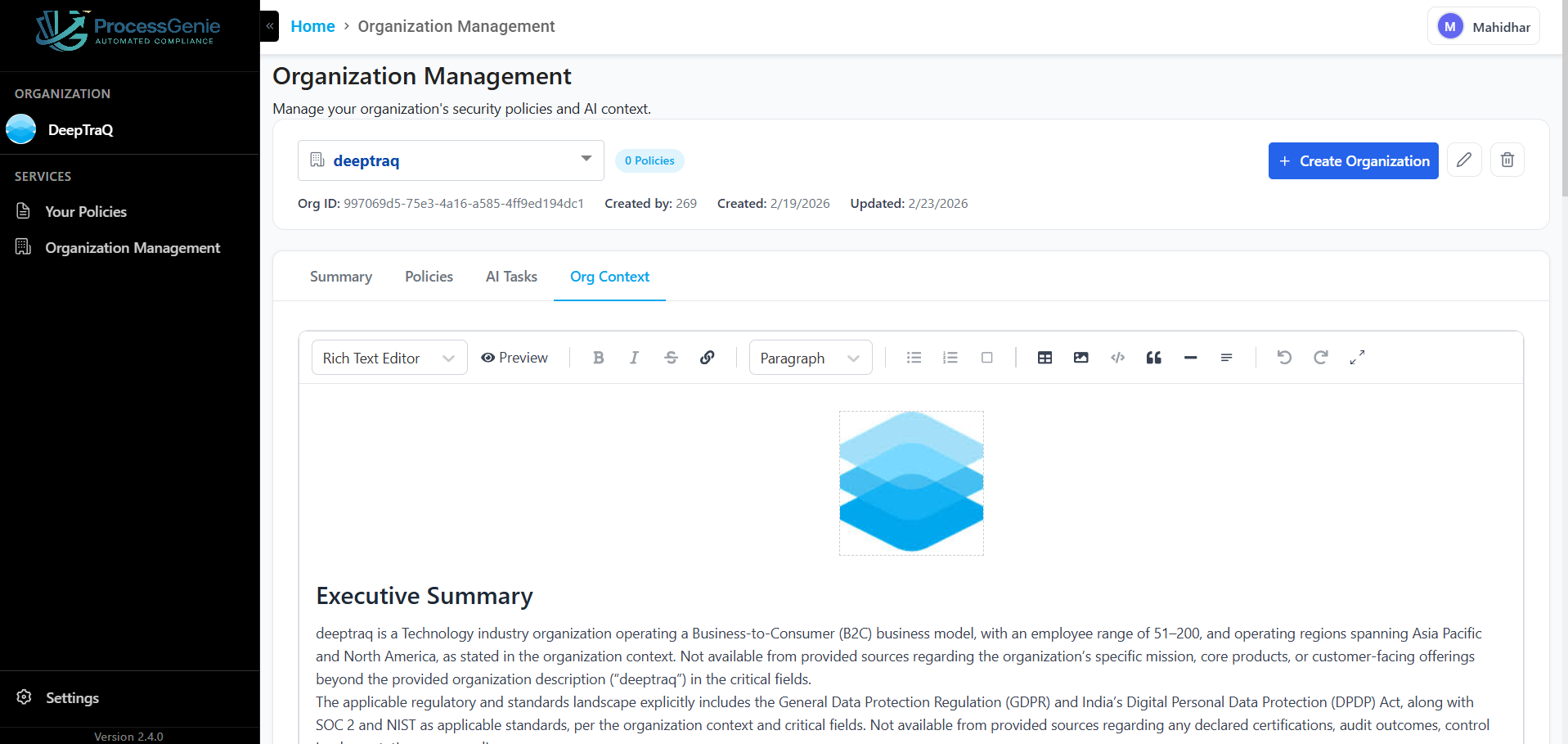
Step 2: Review the summary. If it needs changes:
- Click into the editor and make your edits
- Click "Save Context" to save
⏳ Note: If the summary is still being generated, you will see: "The AI is generating the organization context in the background." Check the AI Tasks tab for progress.
Next Steps
- View & Manage Policies — Review all policies generated from your AI review
- Generate Policies — Manually generate additional policies