Organization Management
Before using Organization Management, you need to have at least one organization created. If you haven't created one yet, see Create Organization first.
Step 1 — Select Your Organization
Go to Organization Management from the left sidebar. Use the organization dropdown at the top to select the organization you want to work in. The list shows all organizations you have created.
View: Organization dropdown — select your organization
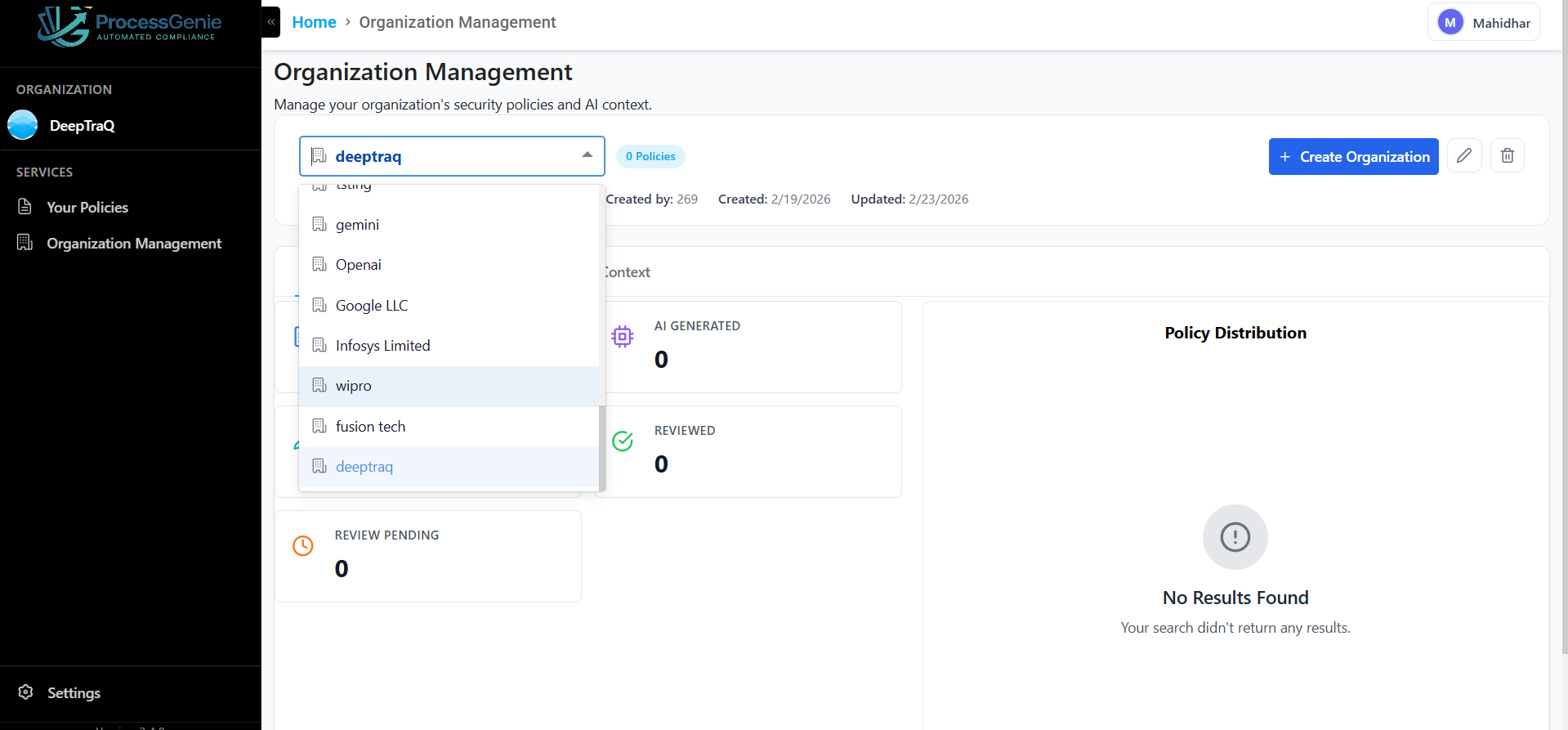
Once selected, the organization header appears below the dropdown showing:
- Org ID — unique identifier
- Created by — the user who created it
- Created and Updated dates
- A badge with the total policy count
Step 2 — The Four Tabs
After selecting an organization, four tabs appear. Each tab gives you a different view of your organization's compliance data.
View: Organization Management — overview with all four tabs
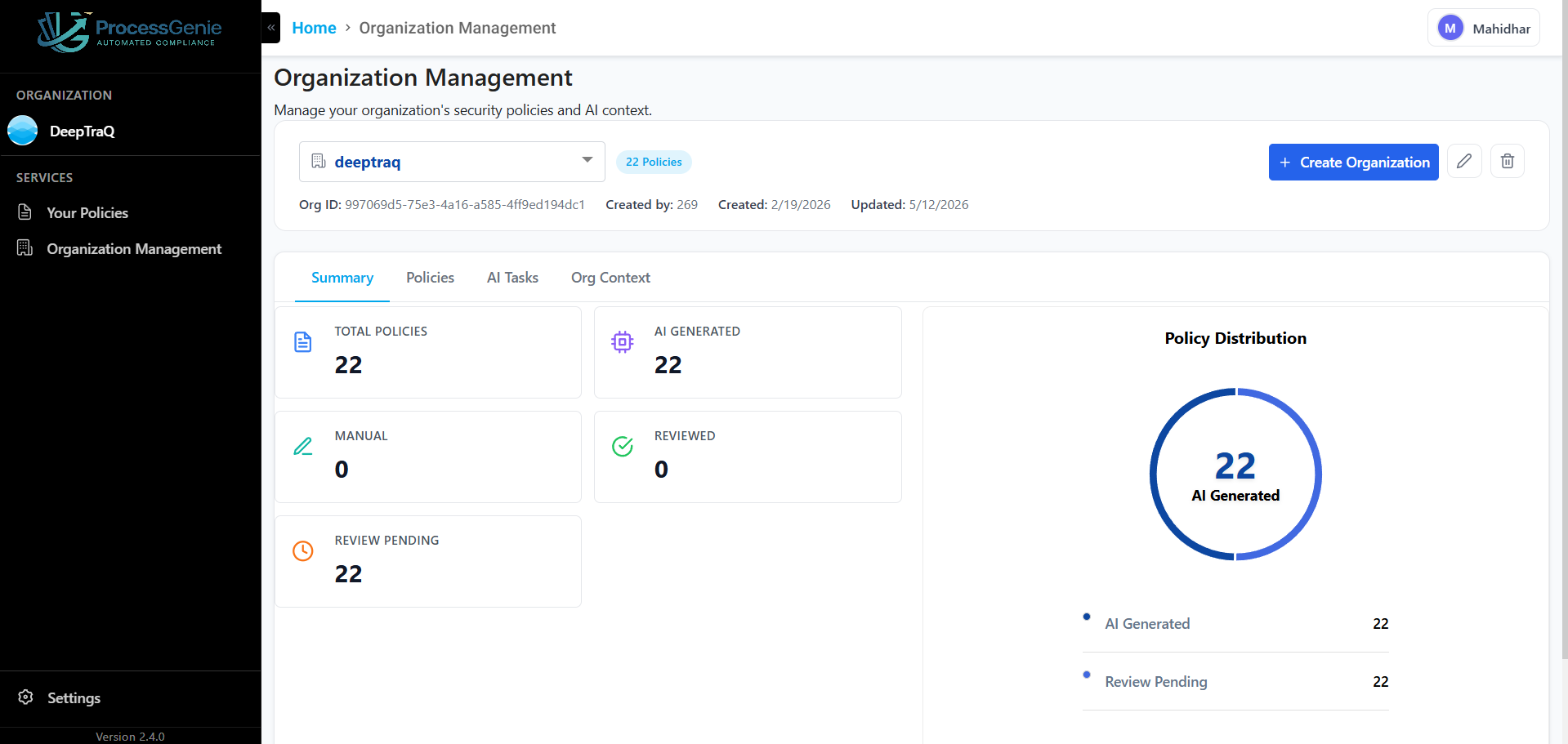
The four tabs — Summary, Policies, AI Tasks, and Org Context — are shown in the top navigation bar of the selected organization.
| Tab | What it shows |
|---|---|
| Summary | Policy counts and distribution chart |
| Policies | Table of all policies for this organization |
| AI Tasks | Background AI jobs and their status |
| Org Context | AI-generated summary used for policy generation |
Summary Tab
The Summary tab shows an at-a-glance view of your organization's compliance status.
View: Summary tab
| Metric | What it means |
|---|---|
| Total Policies | Total number of policies across all statuses |
| AI Generated | Policies created automatically by Process Genie |
| Manual | Policies authored or uploaded manually |
| Reviewed | Policies that have been reviewed and approved |
| Review Pending | Policies awaiting review |
The Policy Distribution donut chart on the right gives a visual breakdown of policy types.
Policies Tab
The Policies tab lists every compliance policy belonging to the selected organization.
View: Policies tab
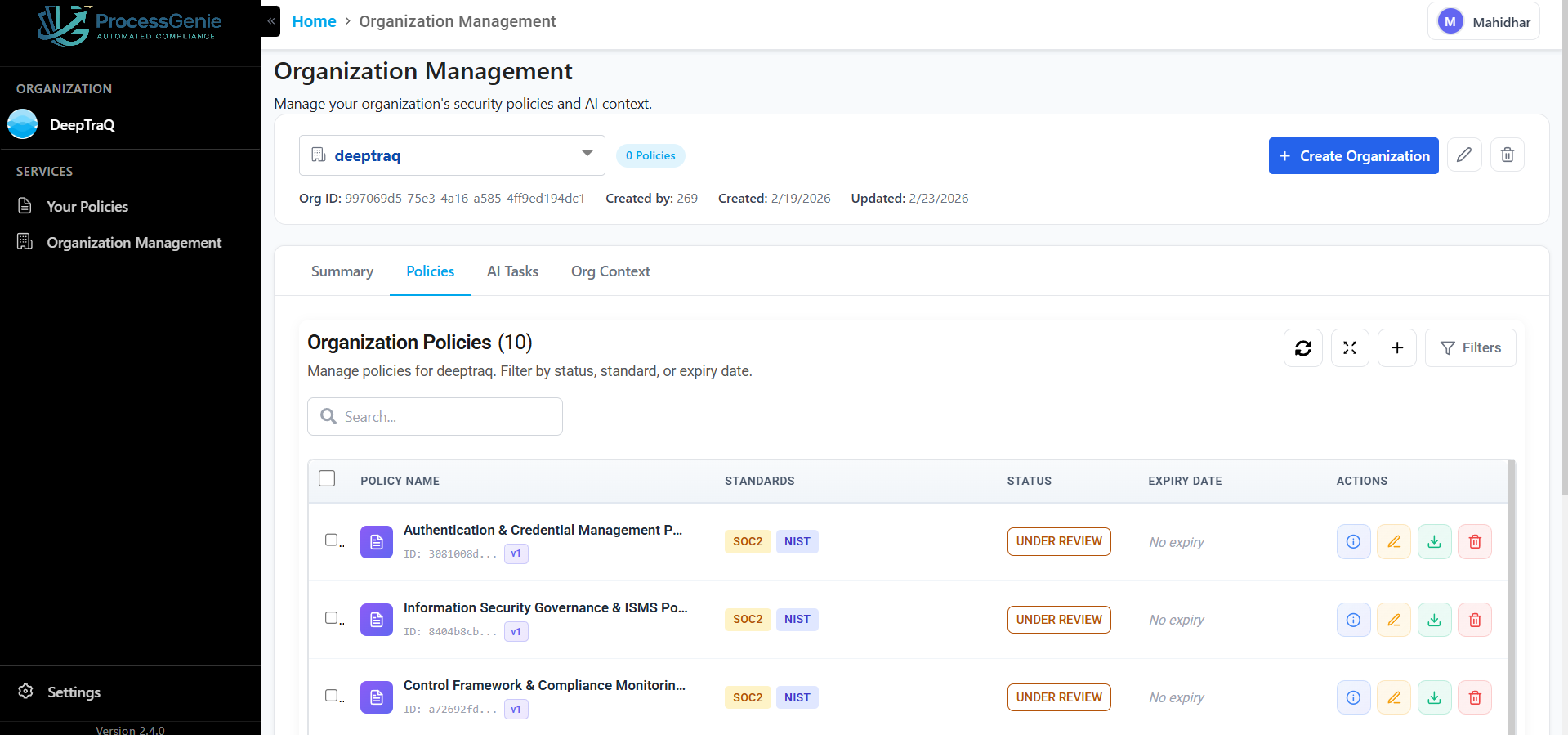
Table Columns
| Column | What it shows |
|---|---|
| Policy Name | Name of the policy |
| Standards | Compliance frameworks covered (e.g., ISO 27001, SOC 2) |
| Status | Under Review, Approved, or Rejected |
| Expiry Date | When the policy is due for its next review |
| Actions | Buttons to interact with the policy |
Actions on Each Policy
| Action | What it does |
|---|---|
| View Details | Opens the full policy document |
| Edit Policy | Opens the policy in the editor |
| Download Policy | Exports the policy as a PDF |
| Delete Policy | Permanently removes the policy |
AI Tasks Tab
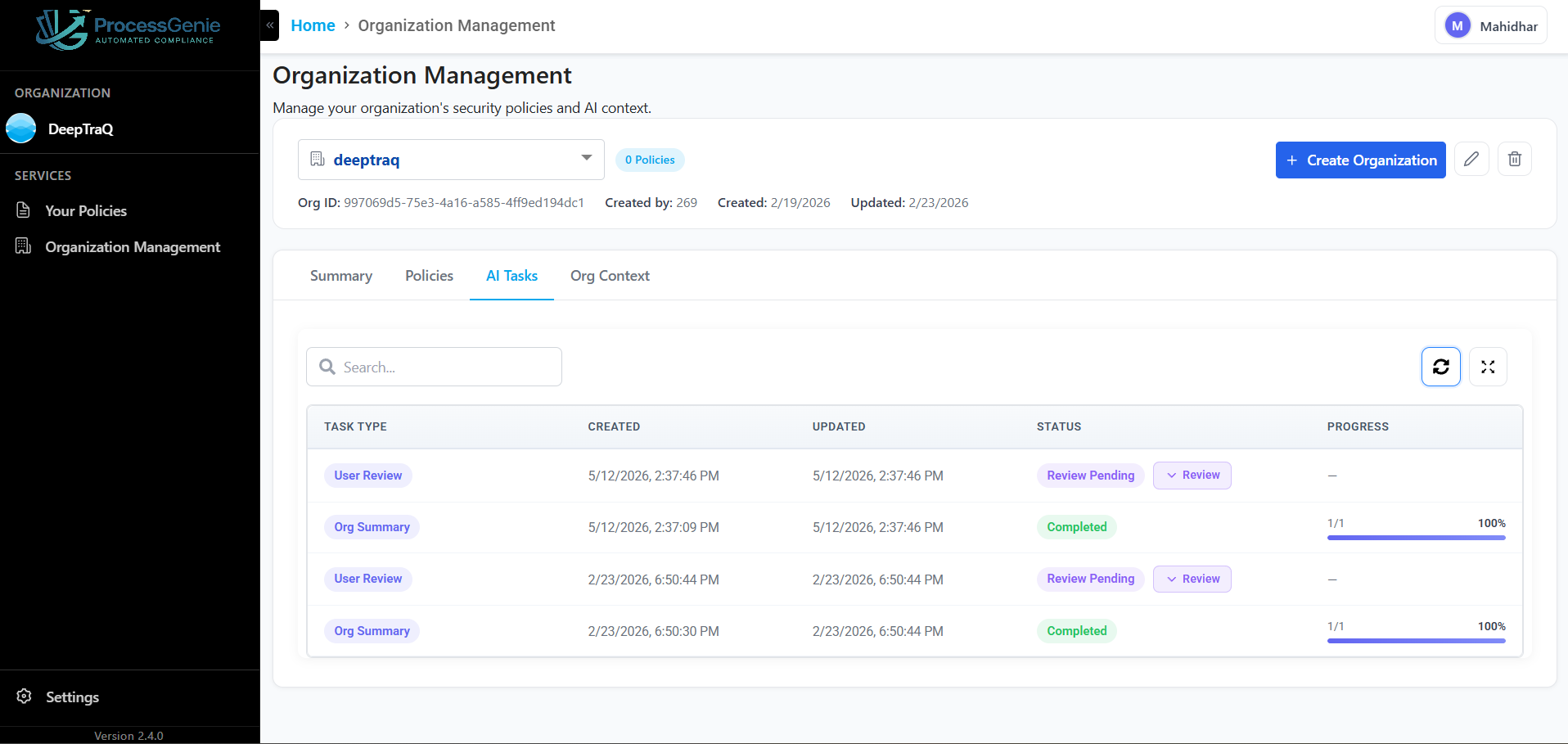
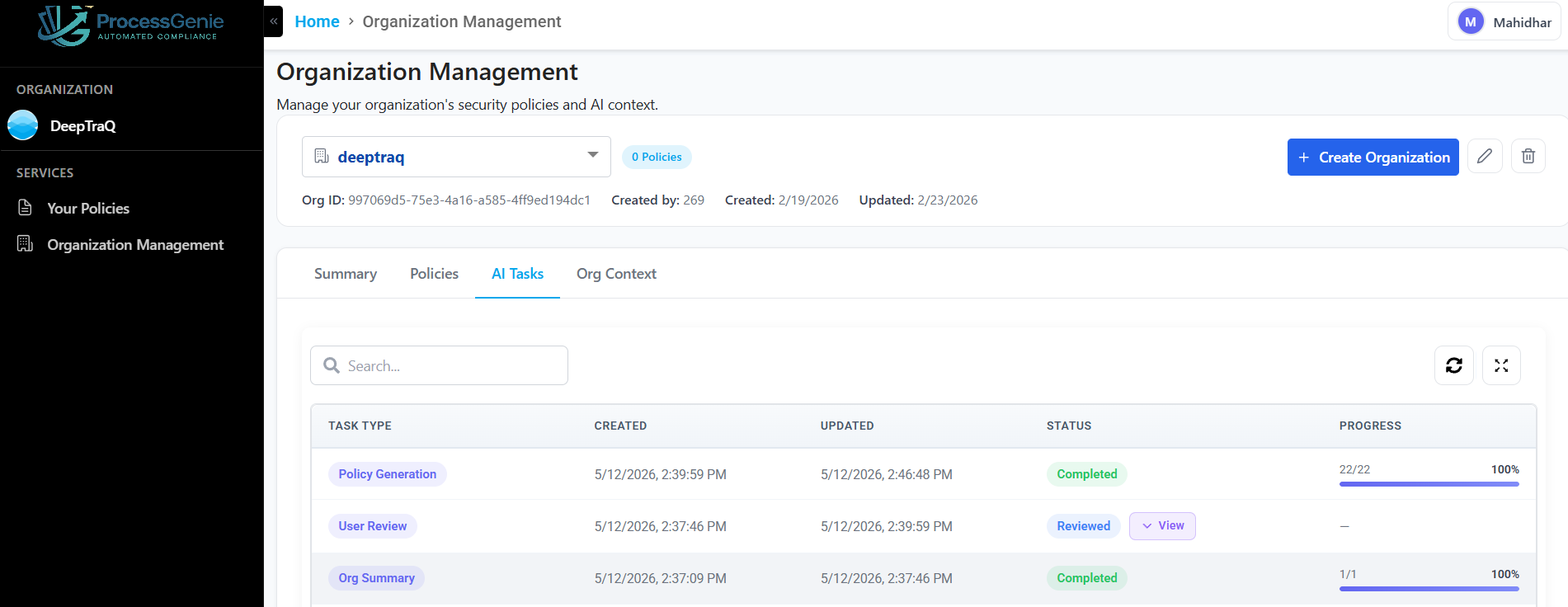
When you create an organization, Process Genie automatically starts two background tasks:
| Task Type | What it does |
|---|---|
| Org Summary | Reads your organization profile and generates the Org Context summary |
| User Review | Analyzes your compliance requirements and suggests which policies to generate |
View: AI Tasks tab — Org Summary and User Review tasks
Reviewing AI-Suggested Policies
When User Review shows status "Review Pending", click the "Review" button on that row.
A panel expands showing two sections:
View: Required Policies and Recommended Policies panel
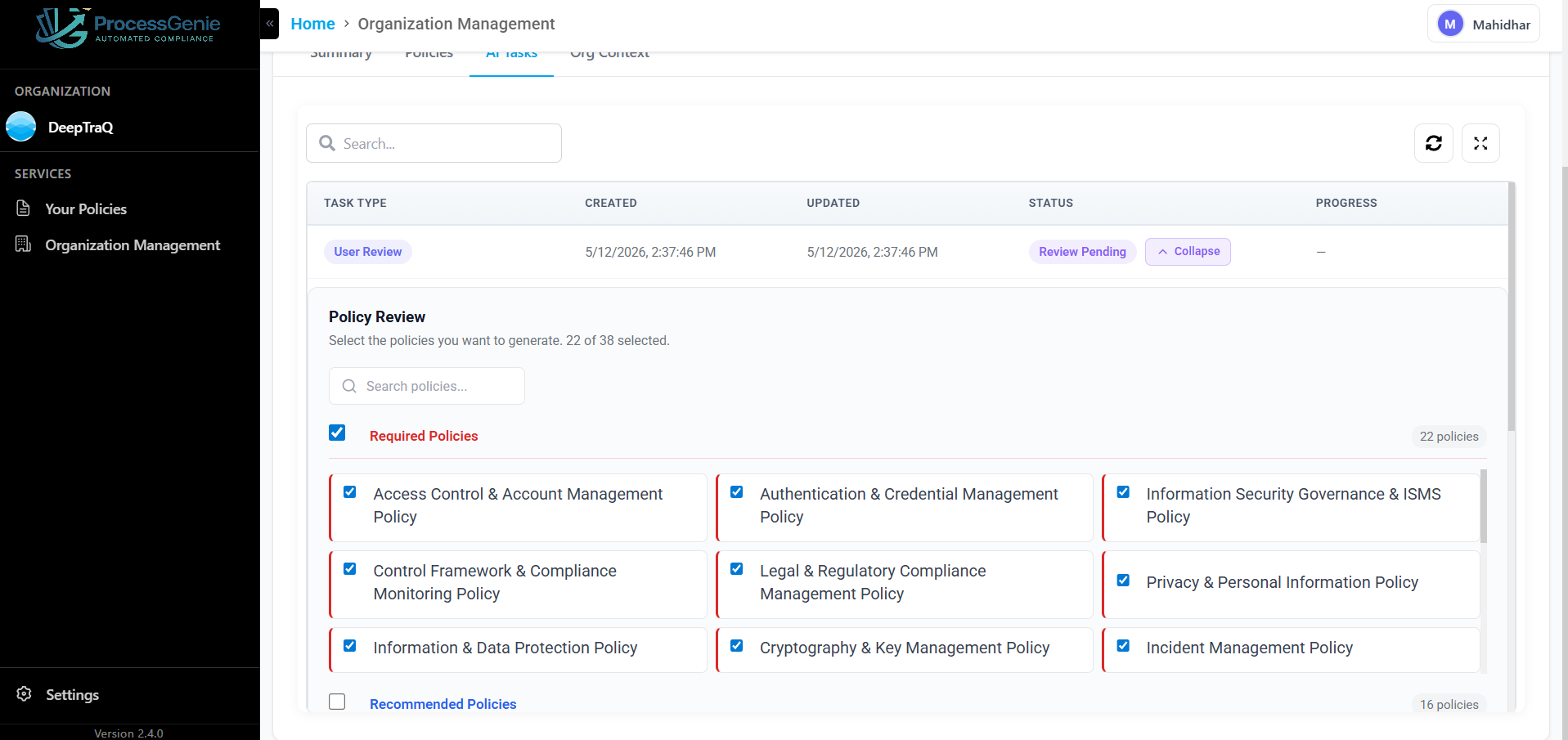
| Section | What it contains |
|---|---|
| Required Policies | Policies the AI determined are mandatory for your compliance frameworks — selected by default |
| Recommended Policies | Additional policies that strengthen your compliance posture |
Check or uncheck individual policies to customize the selection. The counter at the top shows how many are selected (e.g., "22 of 38 selected"). Click "Submit" to confirm — Process Genie generates all selected policies in the background.
After Submission
A Policy Generation task appears and tracks progress. When complete, all policies appear in the Policies tab.
View: Policy Generation task completed
Org Context Tab
The Org Context tab shows the AI-generated executive summary of your organization. This is built from the information provided during organization creation — company details, technology stack, compliance requirements, and supporting documents.
The AI uses this context whenever it generates a policy for this organization, making the output accurate and tailored to your specific environment.
View: Org Context tab
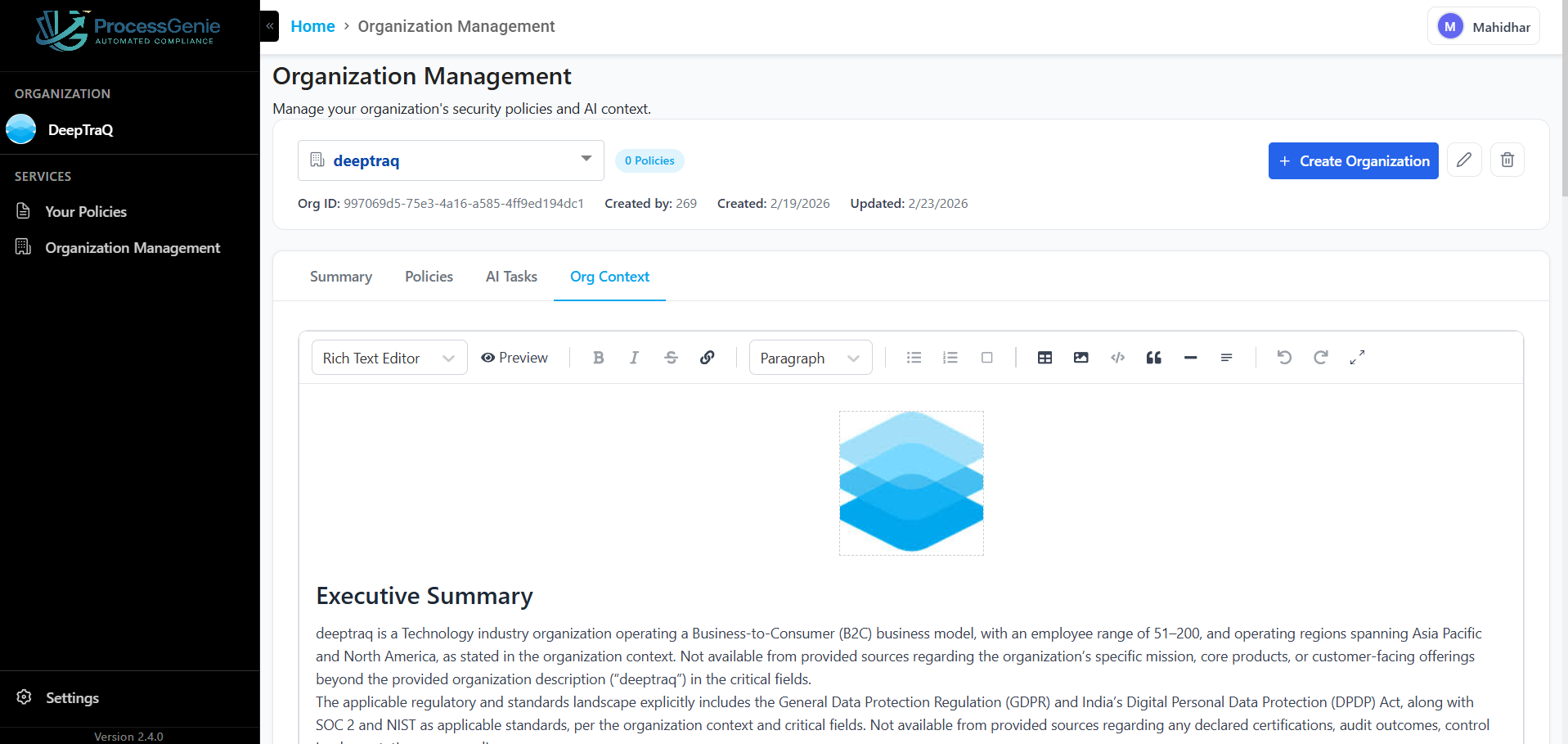
To edit the context, click into the rich text editor, make your changes, and click "Save Context".
Note: If the Org Summary task is still running, you will see a message that the AI is working in the background. Check the AI Tasks tab for progress.
Next Steps
- Generate Policies — Manually browse and generate policies from the template library
- AI Review — Track and manage all AI background tasks