Custom Policies
In addition to AI-generated policies created through the AI Review flow, Process Genie lets you create custom policies manually. You write the full policy content yourself using a rich text editor loaded with a pre-structured template.
How to Create a Custom Policy
Step 1 — Go to the Policies Tab
Step 1: Open Organization Management from the left sidebar.
Step 2: Select your organization from the dropdown.
Step 3: Click the "Policies" tab.
Step 4: Click the "+" (Create Custom Policy) button at the top-right of the policies table.
View: Policies tab — Create Custom Policy button
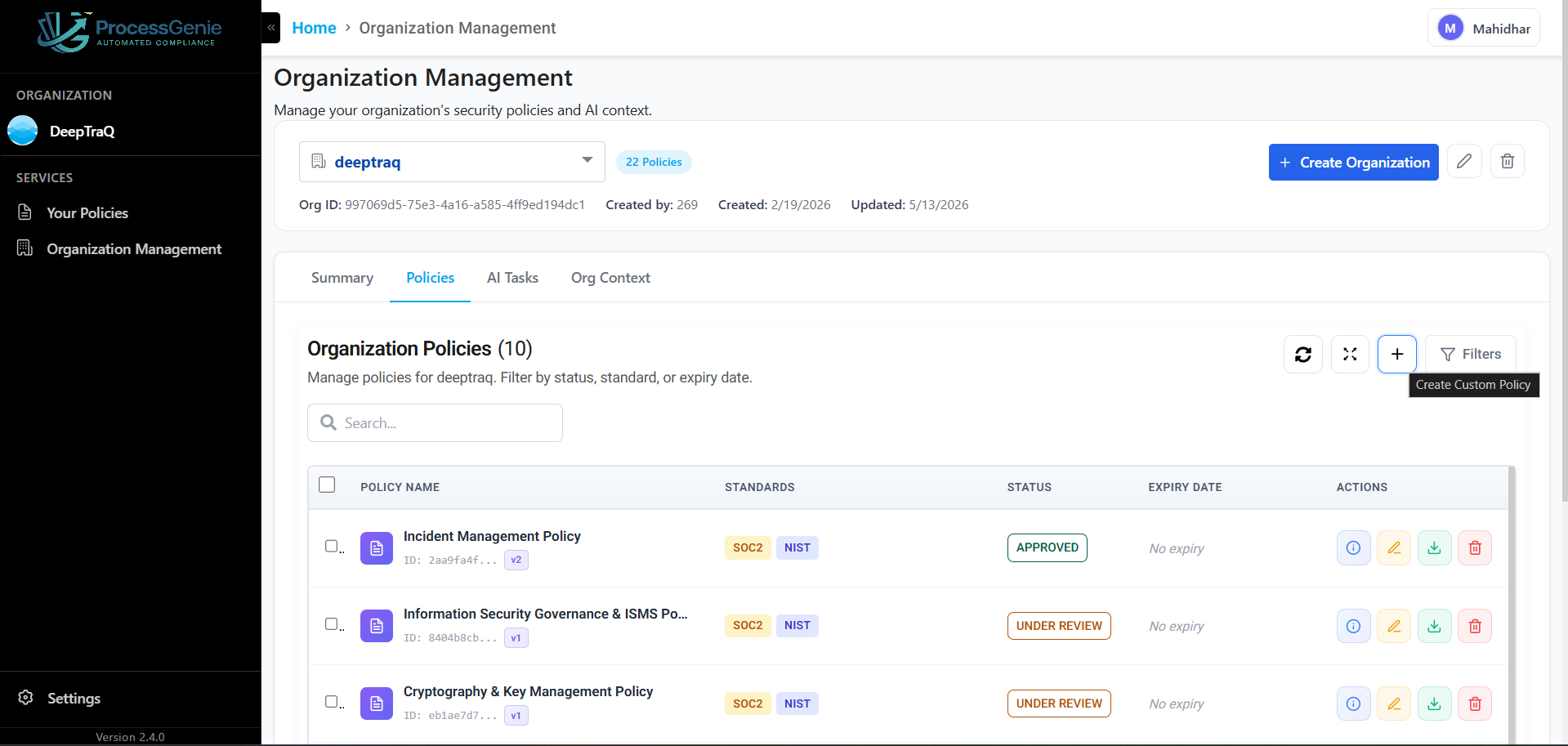
Step 2 — Write Your Policy in the Editor
The Create Custom Policy page opens with a pre-structured template already loaded in the rich text editor.
View: Create Custom Policy editor with template
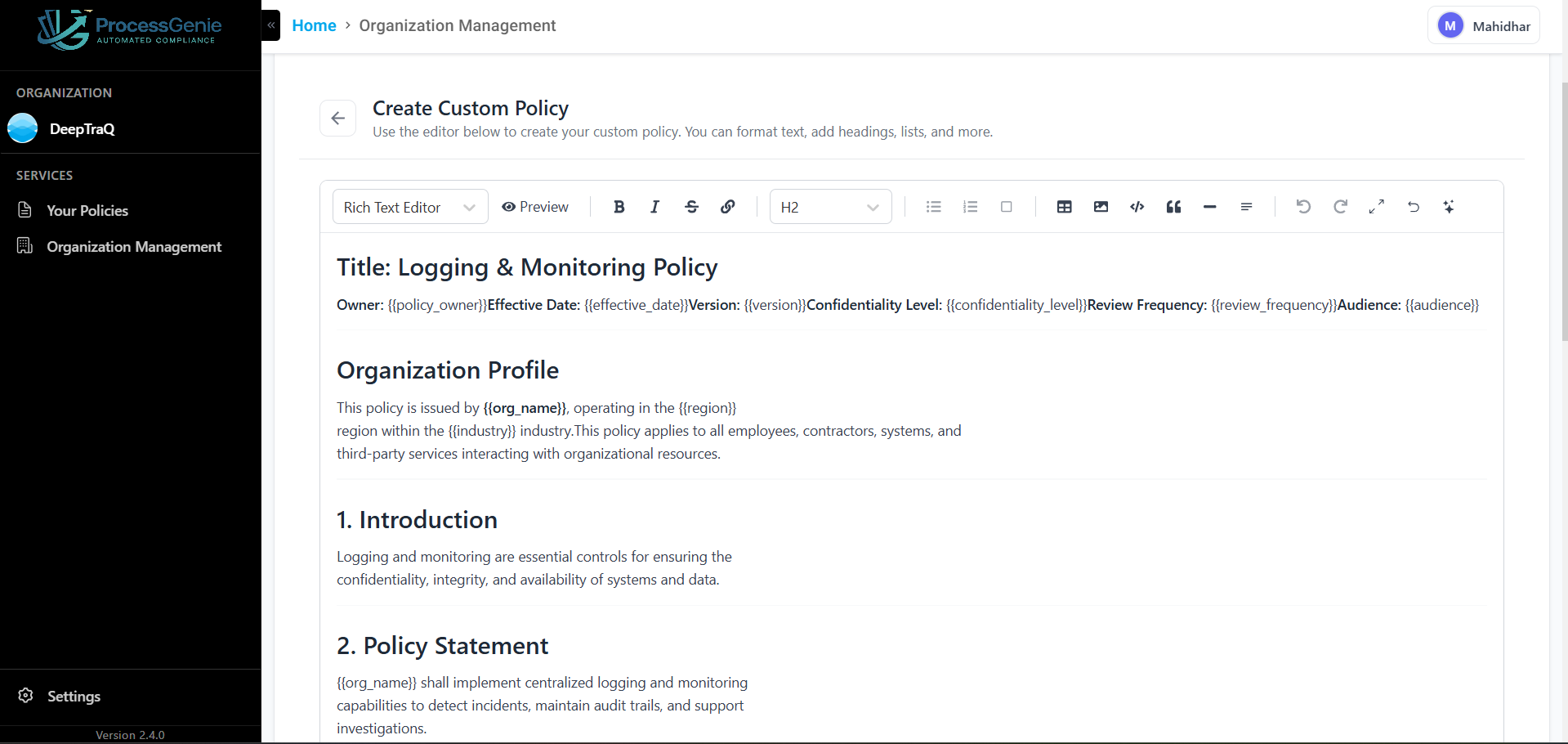
The template includes standard placeholders that you replace with your organization's details:
| Placeholder | What to fill in |
|---|---|
{{policy_owner}} | Name or role of the policy owner (e.g., CISO) |
{{effective_date}} | Date the policy comes into effect |
{{version}} | Version number (e.g., 1.0) |
{{confidentiality_level}} | Internal, Confidential, or Public |
{{review_frequency}} | How often the policy is reviewed (e.g., Quarterly) |
{{audience}} | Who the policy applies to (e.g., all employees, contractors) |
{{org_name}} | Your organization's name |
{{region}} | Region where your organization operates |
{{industry}} | Your organization's industry |
The template also includes pre-built sections:
- Organization Profile — context about your organization auto-populated from your org settings
- 1. Introduction — purpose and scope of the policy
- 2. Policy Statement — the core policy rules and requirements
Step 3 — Edit Using the Rich Text Toolbar
| Tool | What it does |
|---|---|
| B / I / S | Bold, Italic, Strikethrough |
| Link | Insert a hyperlink |
| H2 dropdown | Set heading level (H1–H6) |
| Lists | Bullet list, numbered list, task checkboxes |
| Table | Insert a table |
| Image | Embed an image |
| Code block | Insert a code or config block |
| Quote | Add a blockquote |
| Undo / Redo | Step backward or forward |
| Preview | Switch to read-only preview mode |
Use the ← back arrow at the top to exit without saving.
Step 4 — Save the Policy
When your policy is complete, save it. The policy appears in:
- The Policies tab of Organization Management
- Your Policies in the left sidebar — marked as Custom Policy: Yes and AI Generated: No
Custom Policy vs AI-Generated Policy
| Custom Policy | AI-Generated Policy | |
|---|---|---|
| Created by | You — written manually in the editor | Process Genie AI — generated from your org context |
| Starting point | Pre-structured template with placeholders | AI-written content based on your organization profile |
| How to create | Organization Management → Policies tab → + button | Organization Management → AI Tasks → User Review → Submit |
| AI Generated field | No | Yes |
| Custom Policy field | Yes | No |