AI Assistant in the Policy Editor
The Insights Assistant is a built-in AI tool inside the policy editor. When editing a policy, you can select any text and ask the AI to suggest improvements, add missing sections, rephrase content, or tailor the policy to your organization's context — all without leaving the document.
Step 1 — Open a Policy and Click Edit
Step 1: From Your Policies, open any policy by clicking View Details.
Step 2: In the Policy Document tab, click the Edit Policy button (pencil icon ✏️) in the toolbar.
View: Edit Policy button in the toolbar
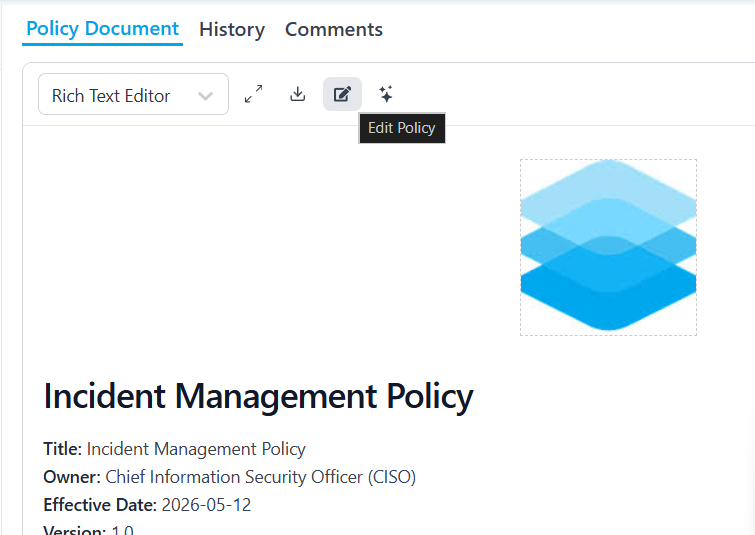
The document becomes fully editable with the rich text editor toolbar activated and Cancel / Save Changes buttons appearing at the bottom.
Step 2 — Select Text and Click "Ask AI"
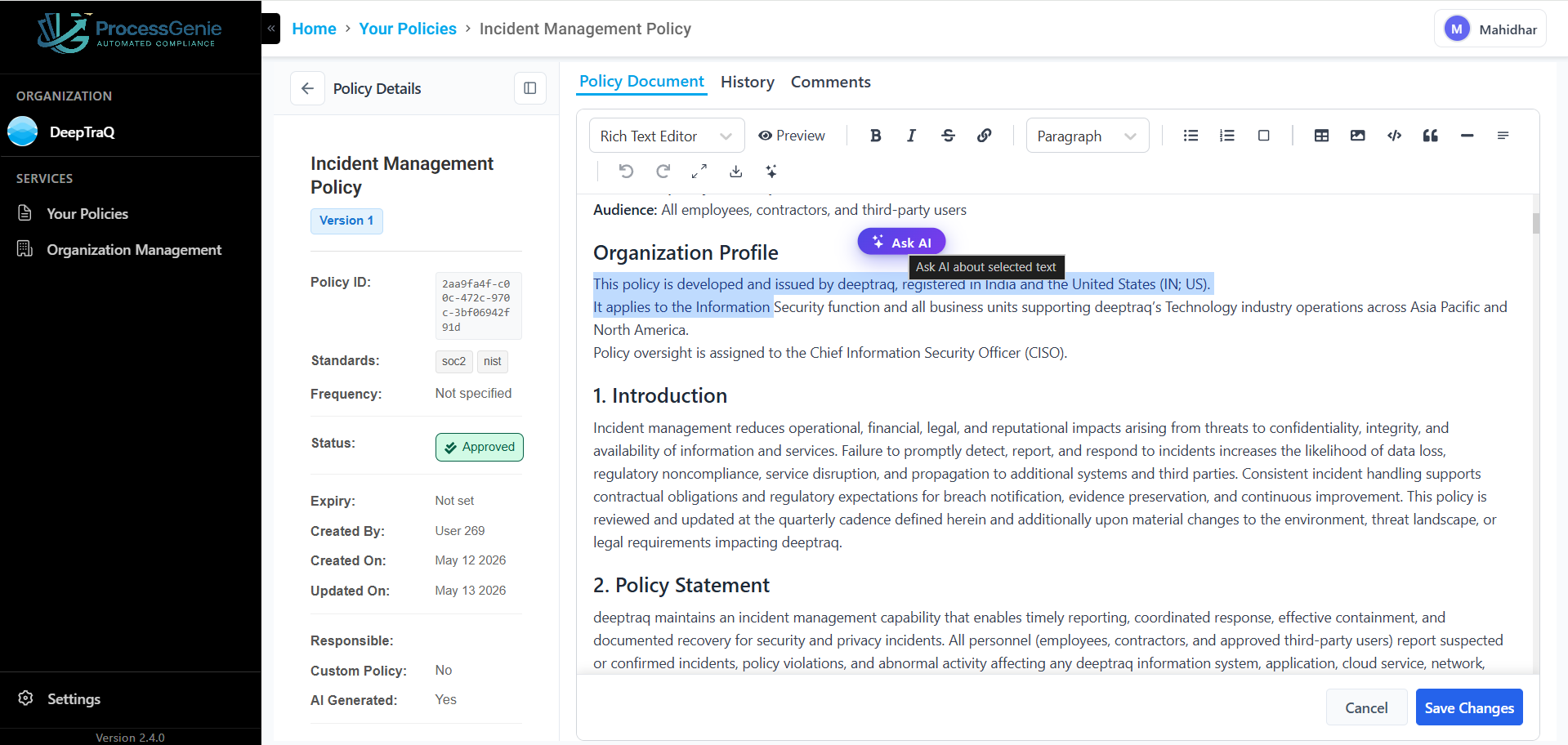
Step 3: In the editable document, select any text you want to improve or expand.
A small "Ask AI" button appears above the selected text.
Step 4: Click "Ask AI".
View: Select text → Ask AI popup appears
Step 3 — The Insights Assistant Panel Opens
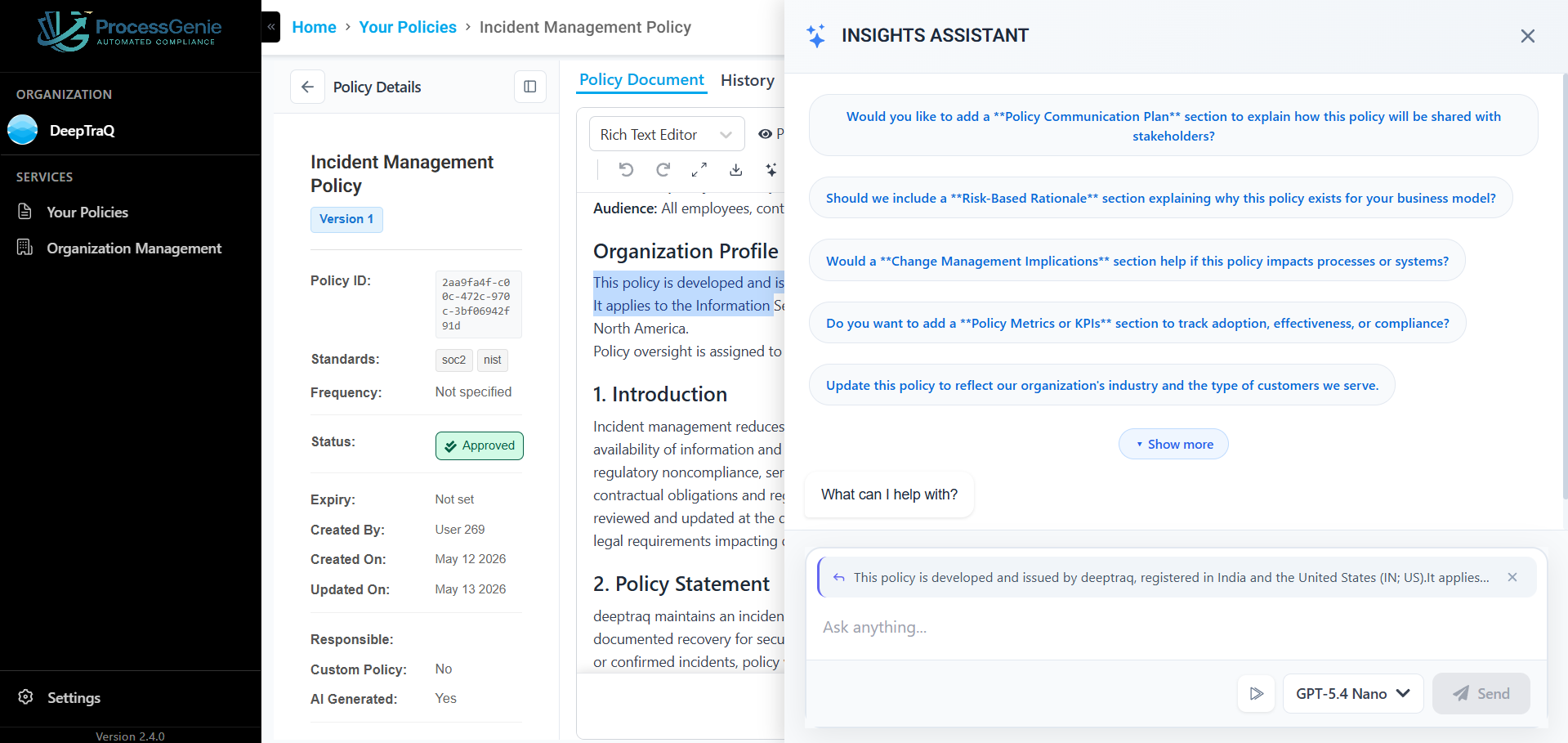
The Insights Assistant panel slides open on the right side. It shows:
- Suggested questions based on your selected text and the policy context — click any card to use it as your prompt
- A "Show more" button to reveal additional suggestions
- A "What can I help with?" prompt area
- Your selected text shown as a context chip at the bottom
- An "Ask anything…" free-text input to type your own question
- A model selector and Send button
View: Insights Assistant panel with suggested questions
Suggested Questions
The AI analyses your selected text and suggests relevant questions, for example:
- "Would you like to add a 'Policy Communication Plan' section to explain how this policy will be shared with stakeholders?"
- "Should we include a 'Risk-Based Rationale' section explaining why this policy exists for your business model?"
- "Would a 'Change Management Implications' section help if this policy impacts processes or systems?"
- "Do you want to add a 'Policy Metrics or KPIs' section to track adoption, effectiveness, or compliance?"
Click any suggestion card to send it as your prompt, or type your own question in the "Ask anything…" field.
Step 4 — Choose an AI Model (Optional)
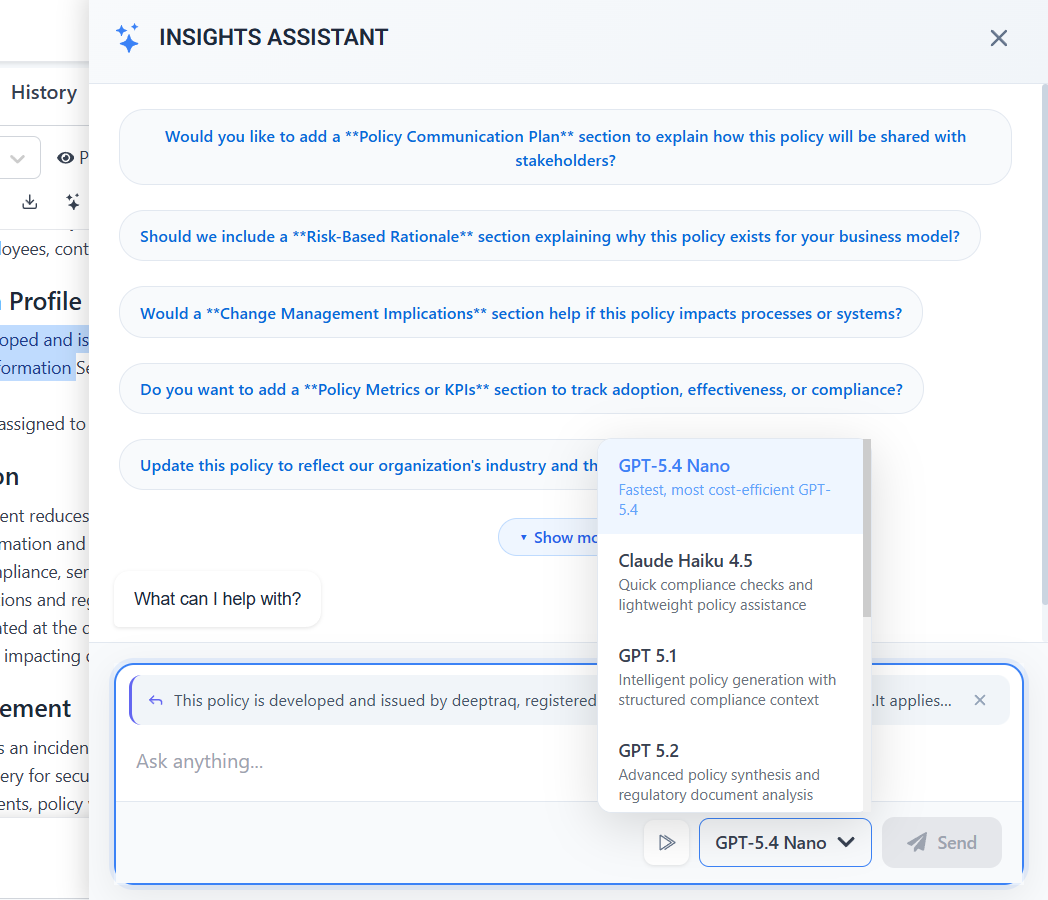
Click the model selector at the bottom of the panel to choose which AI model processes your request.
View: AI model selector
| Model | Best for |
|---|---|
| GPT-5.4 Nano | Fastest, most cost-efficient responses |
| Claude Haiku 4.5 | Quick compliance checks and lightweight policy assistance |
| GPT 5.1 | Intelligent policy generation with structured compliance context |
| GPT 5.2 | Advanced policy synthesis and regulatory document analysis |
Step 5 — Review the AI Response and Apply to Editor
The AI generates a response showing:
- Summary — what changes it is suggesting
- Affected Sections — which parts of the policy are impacted
- Proposed Wording — the exact text it will insert or replace
Step 5: Review the suggested changes. When satisfied, click "Apply to editor".
View: AI response with Apply to editor button
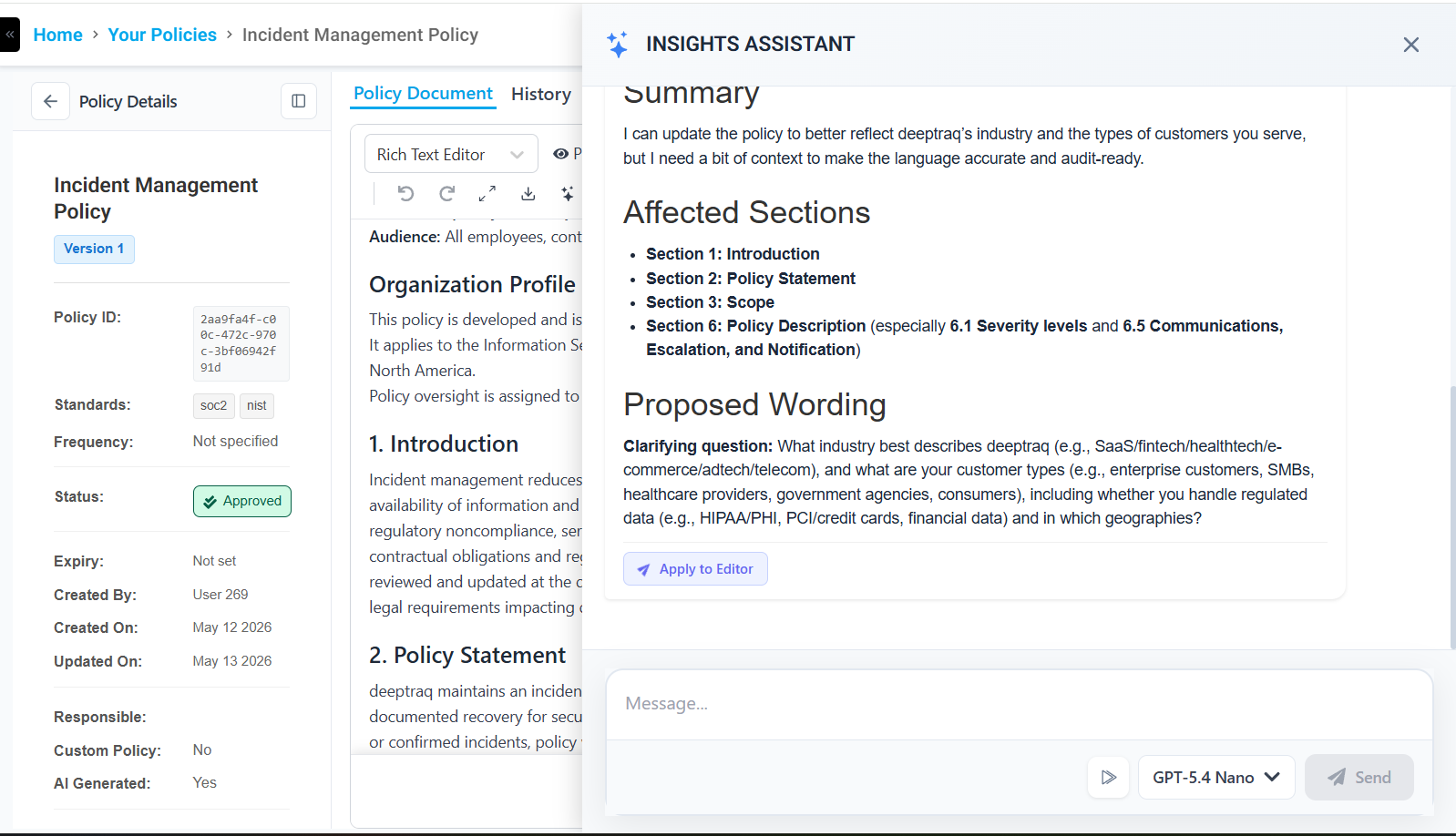
The suggested text is automatically inserted into the policy document at the correct location.
Step 6 — Save Your Changes
After applying the AI suggestion, the updated policy is visible in the editor.
Step 6: Click "Save Changes" at the bottom-right of the editor to save the updated policy.
View: Updated policy with Save Changes button
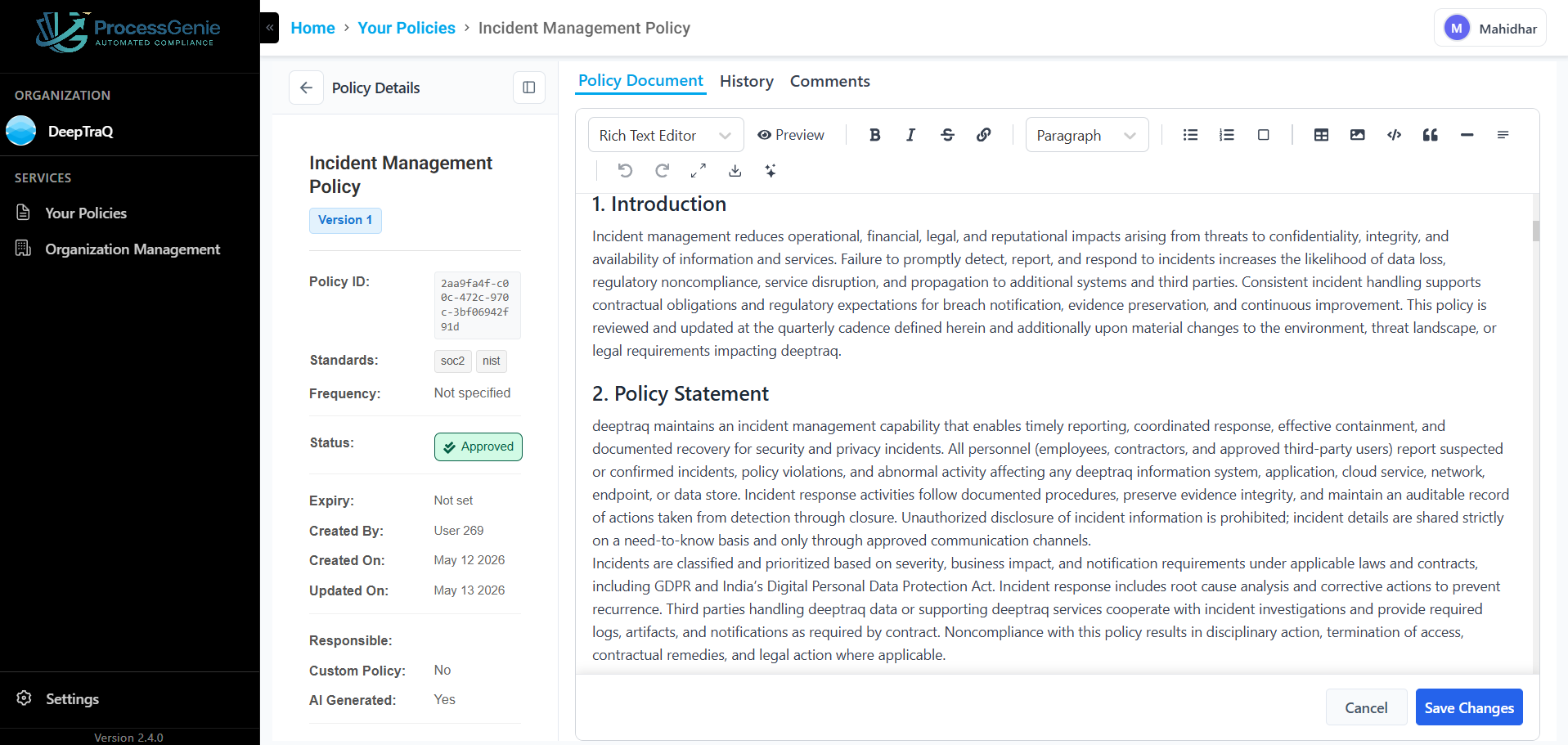
The policy is saved as a new version. The change appears in the History tab with a timestamp and the user who saved it.
Tip: Click "Cancel" at any point to discard all unsaved changes and revert to the last saved version.
Complete Flow at a Glance
Open Policy → Edit Policy → Select Text → Ask AI
     ↓
Insights Assistant Opens → Choose Question or Type Your Own
     ↓
Select AI Model (optional) → AI Generates Response
     ↓
Review Suggested Changes → Apply to Editor → Save Changes