View & Manage Policies
Want to create new policies? See Custom Policies to manually author a policy, or AI Review to let the AI generate policies from your organization profile.
The Your Policies page shows all compliance policies across all your organizations in one place. Every policy generated — whether via AI Review or manually — appears here.
Your Policies Page
Click "Your Policies" in the left sidebar to open the main policy list.
View: Your Policies page
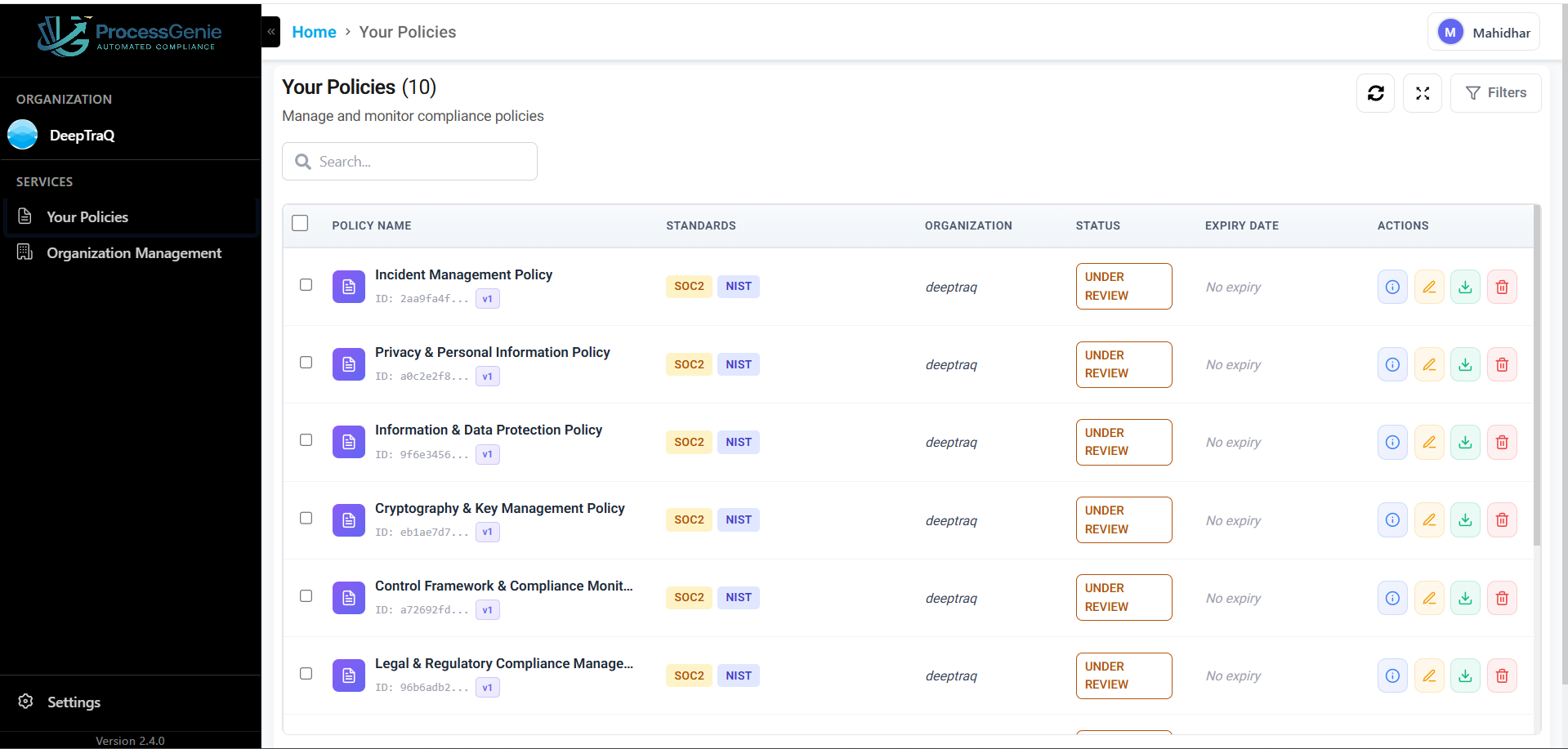
Page Controls
| Control | What it does |
|---|---|
| Search bar | Filter policies by name |
| Filters | Filter by standard, status, expiry date, or organization |
| Refresh icon | Reload the policy list |
| Expand icon | Toggle full-screen table view |
Policy Table Columns
| Column | What it shows |
|---|---|
| Policy Name | Policy title, unique ID, and version number |
| Standards | Compliance frameworks covered — shown as colored tags (e.g., SOC 2, NIST, ISO 27001) |
| Organization | Which organization this policy belongs to |
| Status | Current review status: Under Review, Approved, or Rejected |
| Expiry Date | Next review due date — shows "No expiry" if not set |
| Actions | Buttons to view, edit, download, or delete the policy |
Action Buttons
| Button | What it does |
|---|---|
| ℹ️ View Details | Opens a quick-view side panel with policy metadata |
| ✏️ Edit | Opens the full policy page with the editor and all tabs |
| ⬇️ Download | Exports the policy as a PDF |
| 🗑️ Delete | Permanently removes the policy |
ℹ️ View Details — Quick Panel
Clicking the ℹ️ View Details icon opens a side panel that slides in from the right, showing key metadata without leaving the Your Policies list.
View: Quick-view side panel
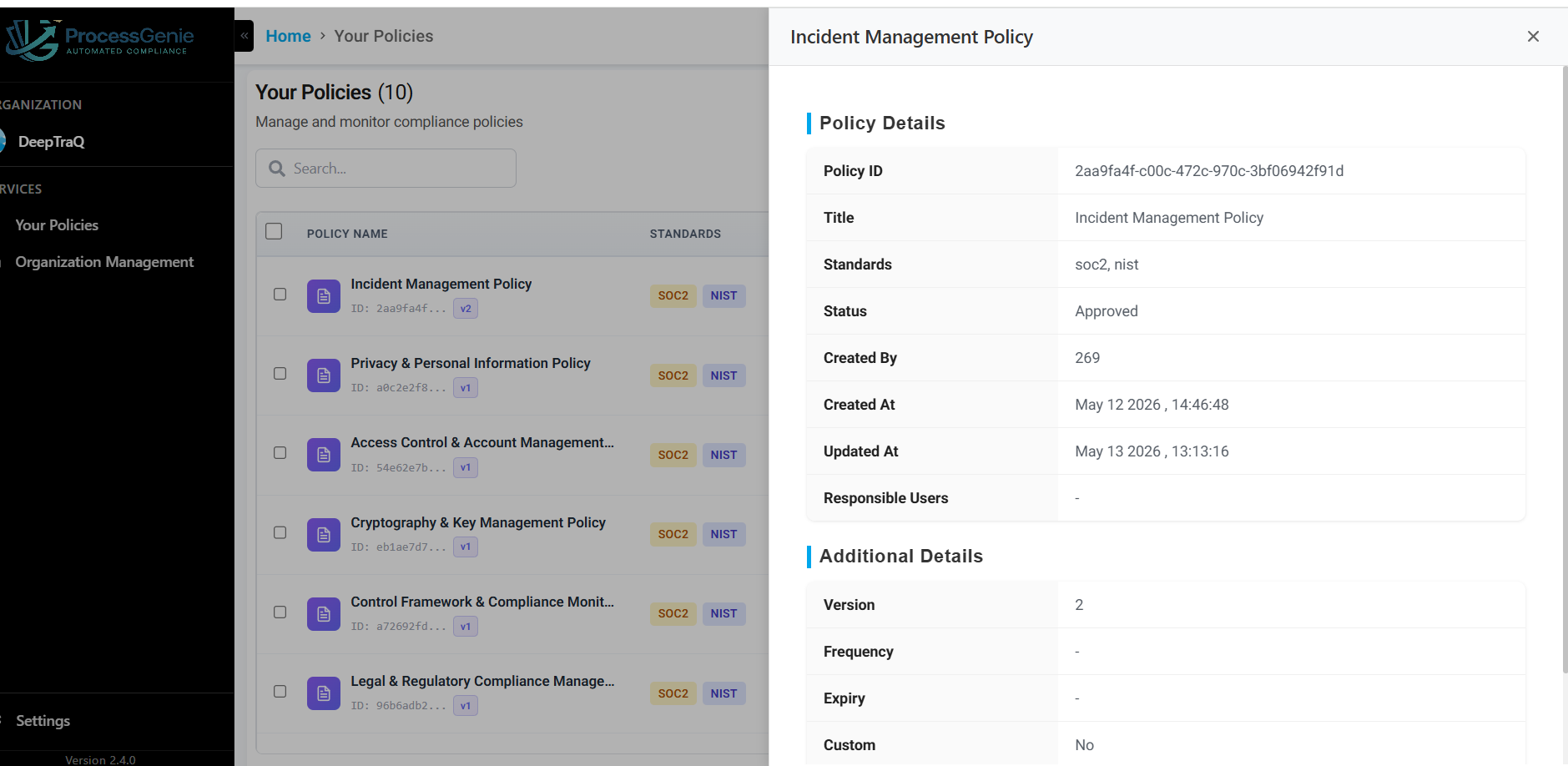
The panel shows two sections:
Policy Details
| Field | What it shows |
|---|---|
| Policy ID | Unique identifier for this policy |
| Title | Full policy name |
| Standards | Compliance frameworks covered |
| Status | Under Review, Approved, or Rejected |
| Created By | User who created the policy |
| Created At | Date and time of creation |
| Updated At | Date and time of last update |
| Responsible Users | Team members assigned to this policy |
Additional Details
| Field | What it shows |
|---|---|
| Version | Current version number |
| Frequency | Review frequency |
| Expiry | Review due date |
| Custom | Whether this is a manually authored policy |
Close the panel by clicking × at the top-right of the panel.
✏️ Edit — Full Policy Page
Clicking the ✏️ Edit icon opens the full policy page with the complete editor, left metadata sidebar, and all three tabs.
View: Full policy page — Policy Document tab
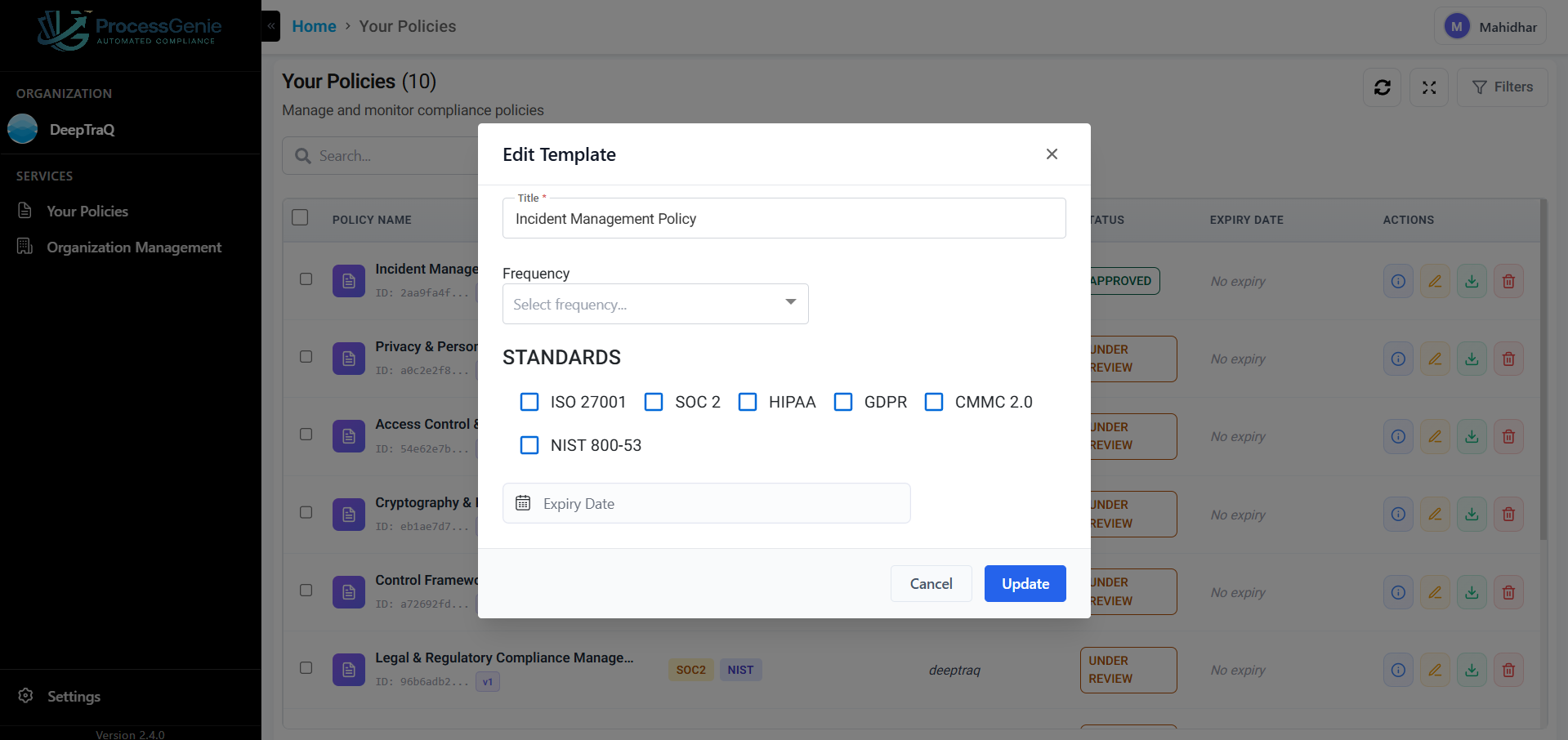
The full policy page has two main areas — a left sidebar with policy metadata and an "Approve Policy" button, and a main content area with three tabs.
Left Sidebar — Policy Details
The sidebar shows all metadata for the selected policy:
| Field | What it shows |
|---|---|
| Policy ID | Unique identifier for this policy |
| Version | Current version number (e.g., v1) |
| Standards | Compliance frameworks this policy covers |
| Frequency | Review frequency (e.g., Quarterly) |
| Status | Current status: Under Review, Approved, Rejected |
| Expiry | Review due date |
| Created By | User who created the policy |
| Created On | Date of creation |
| Updated On | Date of last update |
| Responsible | Person responsible for this policy |
| Custom Policy | Whether this was manually authored |
| AI Generated | Whether this was created by Process Genie AI |
Approving a Policy
The "Approve Policy" button appears at the top of the left sidebar.
Step 1: Review the policy content in the Policy Document tab.
Step 2: Once satisfied, click the "Approve Policy" button in the left sidebar.
Step 3: The policy status changes from Under Review → Approved.
The updated status is immediately reflected in the Your Policies table and in the Summary tab of Organization Management.
The Three Tabs
Policy Document
The main tab showing the full policy content in a rich text editor.
- View the complete policy text with formatted headings, sections, and tables
- Click Edit to make changes directly in the editor
- Click Download as PDF to export the current version
History
Shows a complete version history of all changes made to this policy:
- Who made each change
- When the change was made
- What version it created
Comments
A discussion thread for team collaboration on this policy:
- Add comments to flag issues, ask questions, or note decisions
- Edit or delete your own comments using the icons that appear on hover
- All team members with access to the organization can view and add comments
Searching and Filtering Policies
To search: Type in the search bar to find policies by name.
To filter: Click "Filters" (top-right) and select from:
| Filter | Options |
|---|---|
| Organization | Filter by a specific organization |
| Status | Under Review, Approved, Rejected |
| Standard | ISO 27001, SOC 2, HIPAA, GDPR, CMMC 2.0, NIST 800-53 |
| Expiry Date | Filter by date range |
Click "Apply" to activate, or "Clear All" to reset.
Deleting a Policy
Click the 🗑️ Delete button on the policy row and confirm when prompted.
⚠️ Warning: Deleting a policy is permanent and cannot be undone.