Download Reports & Documents
What this does
Process Genie exports your compliance policies as professionally formatted PDF documents. Each PDF includes a cover page, your organization logo, metadata (version, status, review dates), a table of contents, and page headers/footers — ready to share with auditors, clients, and stakeholders.
Downloading a Single Policy
Method 1: From the Policy Table
- Go to Your Policies in the left sidebar
- Find the policy you want to export
- Click the ⬇️ Download button on the policy row
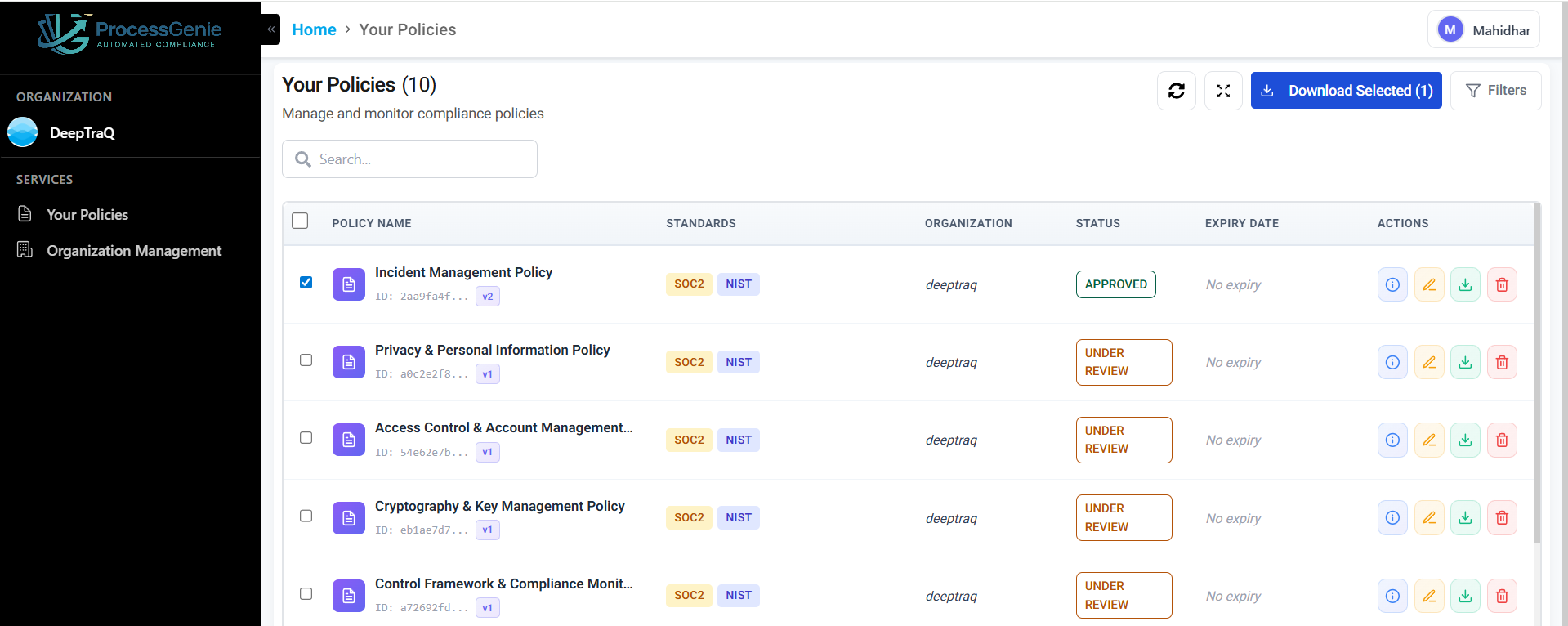
View: Download a single policy from the policy table
Method 2: From Inside the Policy
- Open the policy by clicking "View Details" (ℹ️)
- On the Policy Document tab, click the ⬇️ Download as PDF icon in the editor toolbar
What the PDF Contains
| Section | Contents |
|---|---|
| Cover page | Organization logo (or initials), policy title, organization name, and a metadata table |
| Metadata table | Version, Status, Review Status, Approval Status, Created date, Last updated, Generated on, Organization name |
| Table of contents | Auto-generated with page numbers |
| Policy content | Full policy text with headings, tables, and formatted sections |
| Header (every page) | Logo, policy title, version number |
| Footer (every page) | Page number and confidentiality notice |
Downloading Multiple Policies (Bulk Download)
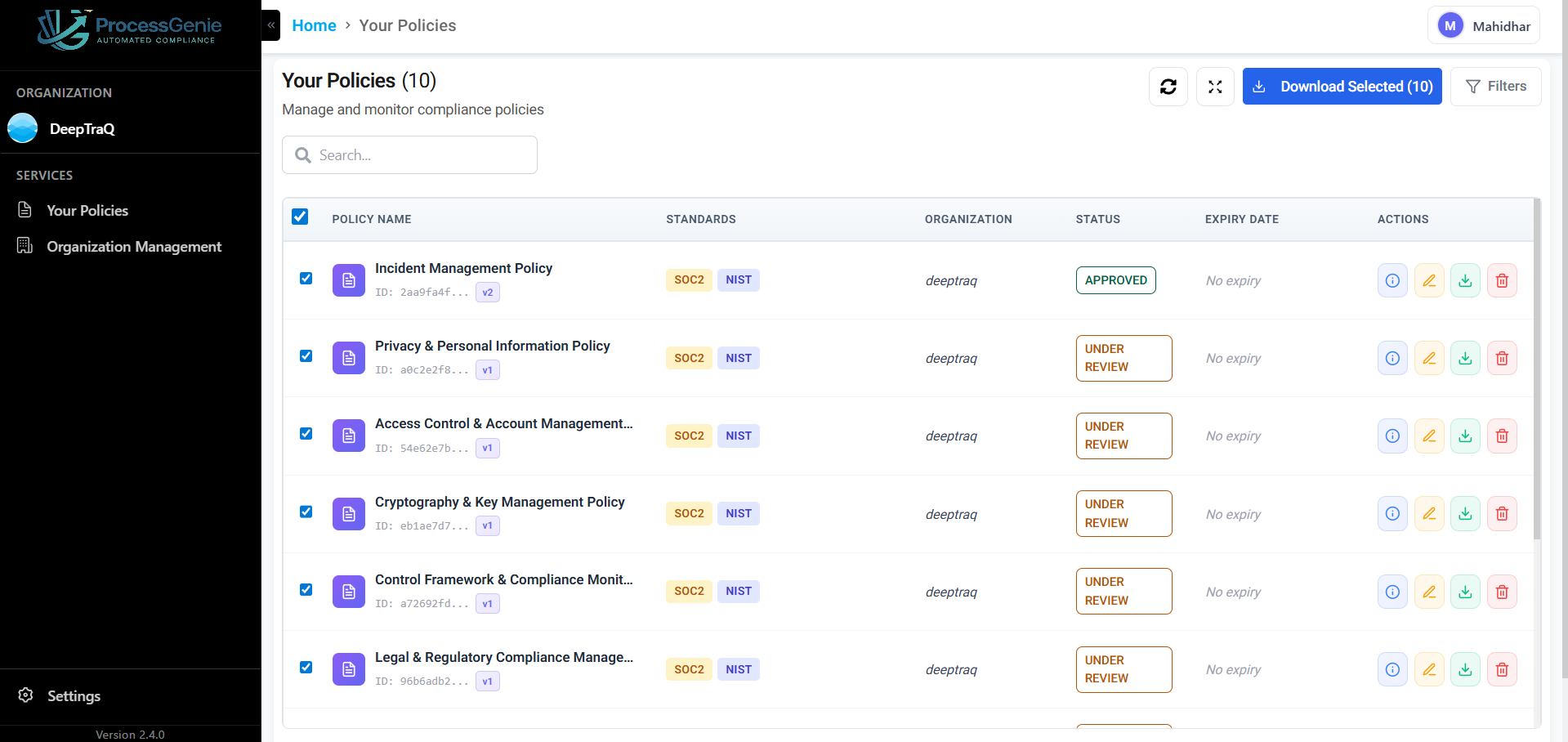
Step 1: On the Your Policies page, check the checkbox on the left of each policy row you want to export.
Step 2: A "Download Selected" button appears at the top-right showing the number of selected policies. Click it.
View: Multiple policies selected — Download Selected button
Step 3: In the password dialog, optionally enter a password and click "Download".
All selected policies are exported and downloaded.