User Settings
Access your personal account settings by clicking your profile icon in the top-right corner of any page.
Opening Settings
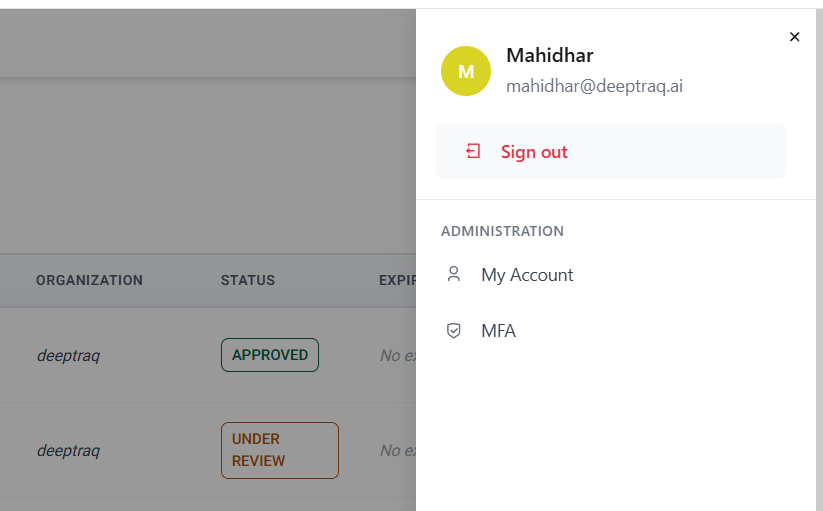
Click your profile avatar (top-right corner) to open the account panel. The panel shows your name, email address, and two options:
- Sign out — log out of Process Genie
- My Account — manage your account details, password, and preferences
- MFA — configure multi-factor authentication
View: Profile panel
Click "My Account" to open the full account settings page.
My Account
The My Account page has five sections:
Account Details
View and update your personal profile information:
| Field | What to update |
|---|---|
| Full Name | Your display name in the platform |
| Email address | Your login email |
| Role | Your role or job title |
Click "Save" to apply changes.
Update Password
Change your account password:
- Enter your current password
- Enter your new password (must meet the requirements shown)
- Re-enter the new password to confirm
- Click "Update Password"
Company Details
View and edit your organization's information associated with your account:
| Field | What to update |
|---|---|
| Company Name | Your organization's name |
| Industry | Your organization's industry |
| Website | Your company website URL |
Click "Save" to apply changes.
User Sign-in History
View a log of recent sign-in activity on your account, including:
- Date and time of each login
- Device or browser used
- IP address / location
Use this to monitor for any unauthorized access to your account.
Delete Account
Permanently delete your Process Genie account.
⚠️ Warning: Deleting your account is permanent and cannot be undone. All your data, organizations, and policies will be removed. Download any reports you need before proceeding.
MFA (Multi-Factor Authentication)
Click "MFA" from the profile panel to configure multi-factor authentication for your account.
For full setup instructions, see the Two-Factor Authentication section in Sign Up & Sign In.
Quick steps:
- Click your profile icon → select "MFA"
- Toggle "Enable two-factor authentication" to ON
- Choose a method: Authenticator App, SMS, or Email
- Follow the on-screen setup steps
- Save your recovery codes in a secure location
⚠️ Important: Recovery codes are shown only once. If you lose access to your 2FA method and have no recovery codes, you will be locked out of your account.